Have you opened a CSV in Excel and seen a long reference number become “1.23457E+15”, product code “1-2” turn into a date, or its final digits differ from the original?
These changes occur when the application automatically interprets CSV values as numbers or dates.
Keep the original CSV and import columns that must not change as Text from the start.
A display-only change differs from a change to the actual number or date. This article explains how to distinguish them, handle them in Excel, and edit unchanged values in JIM-JIN’s CSV Editor.
Main reasons CSV numbers and dates change
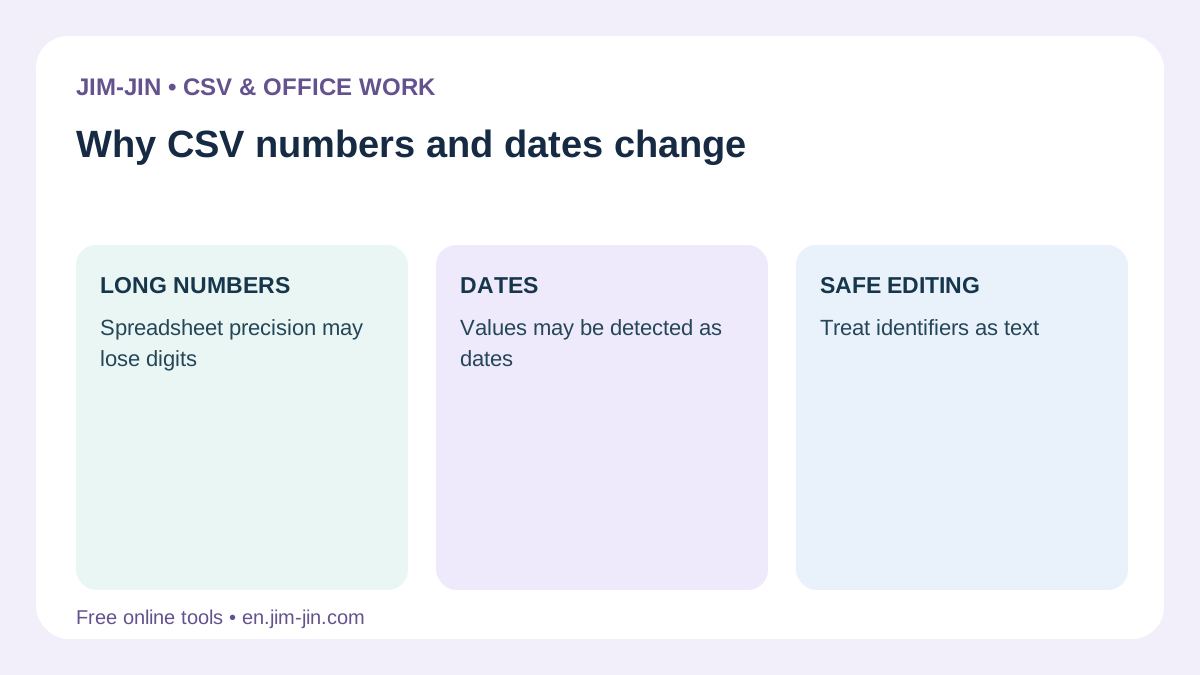
CSV stores values as text, but applications may infer types such as numbers or dates from their contents.
A numeric reference number may become a number, while a code containing hyphens or slashes may become a date.
| Original value example | Possible change | What to check |
|---|---|---|
| 1234567890123456 | Scientific notation appears or final digits change | Display formatting and numeric precision |
| 00123 | Becomes 123 | Check whether leading zeros were removed |
| 1-2 | Interpreted as a date | Check whether a code became a date |
| 2026-09-01 | Becomes 2026/9/1, for example | Determine whether only the date format changed or the value was misinterpreted |
| 1E10 | Interpreted as a number in scientific notation | Check whether an alphanumeric code became a number |
Actual behavior and date formatting depend on application version, settings, locale, and import method.
Microsoft also explains how Excel removes leading zeros and displays long numbers in scientific notation.Microsoft Support: Keeping leading zeros and large numbers
Distinguish identifier numbers from numbers used in calculations
Amounts and quantities are numbers for calculation. Order numbers, product codes, and member numbers identify records.
Identifiers may be better treated as text even when they contain only digits.
If “00123” and “123” are distinct codes, do not remove leading zeros. Changing one digit in a long reference number changes its identity.
First distinguish display changes from data changes
If a number or date looks different, compare it with the unedited CSV before overwriting anything.
Scientific notation may change only the display
A value such as “1.23457E+11” is a shortened scientific representation of a long number.
If only the display changed, the original numeric value may remain inside the cell. Adjusting column width or formatting may reveal ordinary digits.
However, switching scientific notation back to ordinary digits does not prove that the value matches the original. Compare the digit count and every digit with the unedited CSV.
Long numbers may have lost their final digits
Excel retains numbers with 15 significant digits of precision. Identifiers with 16 or more digits may lose information when treated as numbers.
Changing the format to Text afterward does not restore lost digits.Microsoft Support: Preserving long numbers
For reference numbers, check not only whether all digits are visible but also whether every digit matches the original file. This comparison is necessary.
Dates may have changed only their display format
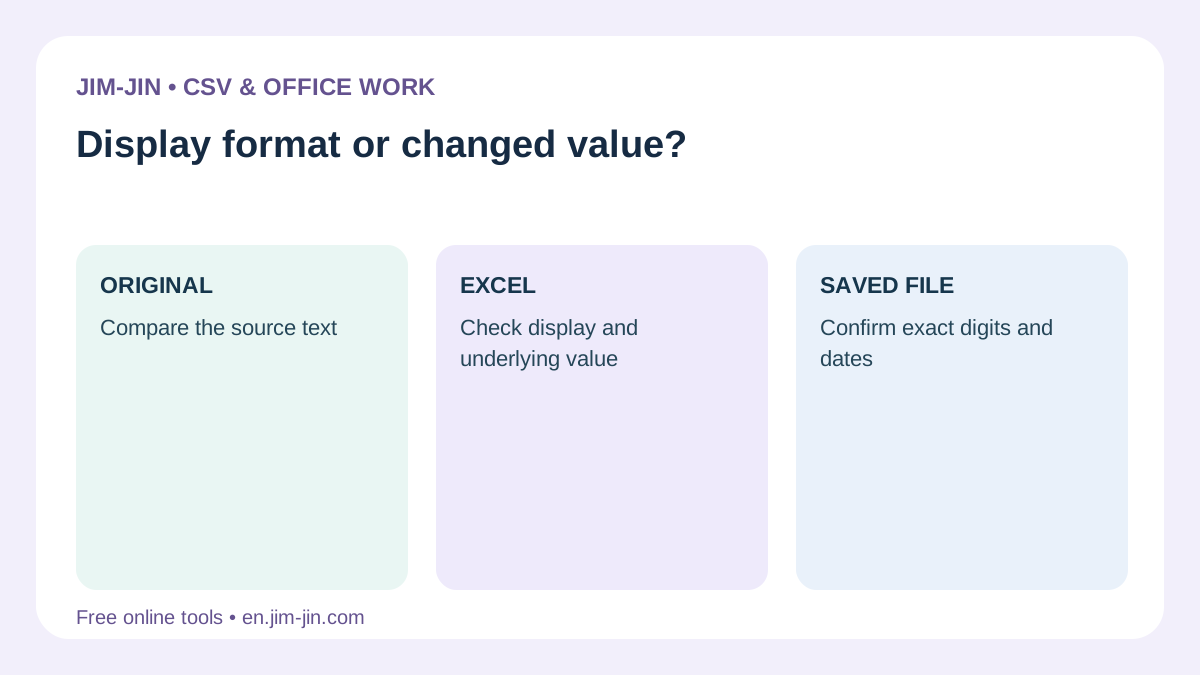
“2026-09-01” becoming “2026/9/1” may simply represent the same date in another format.
If product code “1-2” becomes a date, however, the meaning of the data has changed.
Values such as “03/04/2026” can also be interpreted differently depending on locale and import settings.
Distinguish these three situations.
- The same date appears in another format.
- A code was interpreted as a date.
- A date was imported with a different month/day interpretation.
Method 1: Edit values as text in JIM-JIN’s CSV Editor
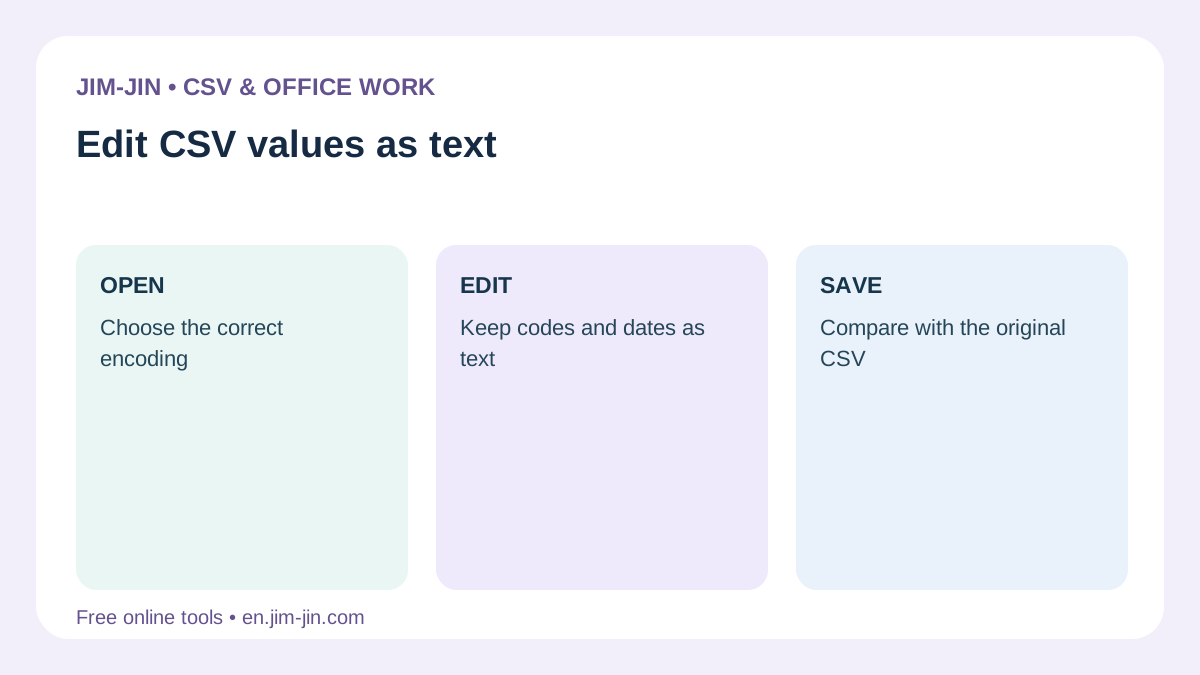
For partial corrections, choose a CSV editor that does not automatically convert values to numbers or dates.
JIM-JIN’s CSV Editor is designed to preserve cell values as text. It lets you edit long numbers, leading zeros, and date-like values without changing their character sequence.
It is useful for data such as the following.
| Data | Example value to preserve |
|---|---|
| Long reference number | 1234567890123456 |
| Product code with leading zeros | 00123 |
| Date-like identifier | 1-2 |
| Code containing the letter E | 1E10 |
| Date whose written format must remain unchanged | 2026-09-01 |
Import the original CSV
Use a CSV that has not been saved again through Excel.
- Keep an unedited copy of the original file.
- Load the CSV in JIM-JIN’s CSV Editor.
- Check long numbers, leading zeros, and date formats.
- Edit only the required cells.
- Review save settings and save the edited CSV.
- Reload the saved CSV and check that unchanged values were preserved.
To correct a product name, edit only its cell and leave codes and reference numbers untouched. You can also add or remove rows and columns or use find and replace.
Changed values are not restored automatically
An editor that preserves text cannot know the original value if the input CSV has already changed.
For example, once Excel changes a long number’s final digits and saves them to CSV, reloading that CSV will not restore the original number.
Editing without changing values and recovering lost values are separate tasks. Keep the original CSV or its source data.
Take care when opening the saved file in another application
Even after JIM-JIN preserves text while saving, opening the CSV directly in Excel may convert it again to numbers or dates.
CSV does not store a universal cell format requiring an application to open a particular column as text. Configure the destination application accordingly.
Method 2: Import the relevant columns as Text in Excel
If using Excel, review the import method before double-clicking the CSV.
Excel for Windows lets you review import settings using “From Text/CSV.” Menu names and screens may vary by version.
- Open a blank workbook in Excel.
- On the Data tab, choose From Text/CSV.
- Select the unedited CSV.
- Check encoding and delimiter, then choose “Transform Data.”
- In Power Query, select reference-number or code columns.
- Set their data type to Text.
- If asked about type conversion, replace the existing conversion.
- Check the original values are preserved, then load the data.
Review automatic conversions to numbers or dates
Power Query may automatically add a type-conversion step during import.
Adding a conversion to Text after numbers or dates were already converted may not restore the original character sequence.
Review type changes under Applied Steps, replace or remove the automatic conversion, and configure the source data as Text.
Microsoft’s guidance also explains specifying text types during import.Microsoft Support: Specifying Text when importing CSV
Format new cells as Text before entering values
Before adding codes or reference numbers in Excel, format the destination cells as Text.
- Select the destination cells or column.
- Open Format Cells.
- Choose Text as the number format.
- Then enter or paste the values.
Changing converted numbers or dates to Text afterward may not recover the original notation.Microsoft Support: Format numbers as text
Method 3: Review automatic data-conversion settings in supported Excel versions
Supported editions of Microsoft 365 and Excel 2024 let you change automatic data-conversion settings.
These settings include the following conversions.
- Remove leading zeros and convert to a number.
- Convert long numbers to numbers with 15-digit precision.
- Convert values containing digits and E to scientific notation.
- Convert certain letter-and-number combinations to dates.
Disabling an unwanted conversion may allow the value to remain text.Microsoft Support: Data import and analysis options
However, Do not assume one setting prevents every date conversion. Check actual data, including values with slashes or hyphens.
For columns whose exact character sequence must remain, specify Text during import or before entering values.
If numbers or dates have already changed
If you have not overwritten the file
Even if Excel displays changed values, the original CSV may still contain the correct data.
Do not overwrite it. Reimport the unedited CSV as Text.
If other edits are already complete, save your working version separately and transfer those edits while comparing it with the original.
If you have overwritten the file
First find a reliable source of the original values.
- The CSV immediately after downloading
- An email attachment
- A copy in a shared folder
- File history or backups
- The business system that exported the CSV
- A product master or reference register
If final digits were lost, that file alone cannot identify the correct digits.
Guessing the original code from a converted date may produce another incorrect value. Prioritize comparison with original records.
Compare with the source to decide whether formatting alone can fix it
| Situation | Action |
|---|---|
| Scientific notation appears, but the internal number matches the original | Adjust formatting or column width |
| The final digits of a long identifier differ | Reimport the original file as Text |
| The date is correct and only its display should change | Set the date display format |
| A code was converted to a date | Verify the original code and import it as Text |
| Month and day were interpreted in reverse | Check source data and date interpretation settings, then reimport |
Do not confuse adjusting appearance with recovering lost information.
Choose date handling according to calculation or notation needs
Treating every date as text is not always appropriate. Choose according to the task.
| Purpose | Suggested handling |
|---|---|
| Calculate the difference in days | Import correctly as a date |
| Summarize by month | Check date interpretation and locale |
| Submit the exact notation “2026-09-01” | Consider preserving it as text |
| “1-2” is a product or part code | Treat it as text |
| Correct part of the data without changing its original notation | Use a CSV editor that treats values as text |
Excel may interpret values with slashes or hyphens as dates. Format cells as Text before entering values that should not become dates.Microsoft Support: Prevent automatic conversion of numbers to dates
Points to check in the edited CSV
After editing, check the saved CSV as well as the on-screen data.
- Does every digit of each long reference number match the original?
- Are leading zeros preserved?
- Are date-like codes saved unchanged?
- Do date separators and zero padding meet the requirements?
- Are codes containing E still codes rather than numbers?
- Are values in unedited columns unchanged?
- Are record and column counts as expected?
Use a text-preserving CSV editor or a text editor to verify. In Excel, import the relevant columns as Text.
If double-clicking changes values again, it becomes difficult to tell whether they changed during saving or during verification.
Frequently asked questions
Does “E+” mean the number is corrupted?
Not necessarily. The value may simply be displayed in scientific notation.
However, long identifiers treated as numbers may lose digits. Adjust the display and compare with the unedited original file.
Why does changing to Text not restore the value?
Changing a converted number or date to Text does not reconstruct its original character sequence.
Import the original file as Text from the first import step.
Will enclosing CSV values in double quotes prevent conversion?
Not necessarily.
CSV quotes handle delimiters and quotation marks; they do not universally force the destination application to use a Text type. Set the relevant import columns to Text.
Will UTF-8 or a BOM prevent automatic conversion?
Encoding or BOM settings alone cannot prevent it.
Encoding controls how characters are read. Whether the resulting value is treated as a number, date, or text is a separate issue.
Can I add a leading space to force text?
Adding a space changes the CSV data and may affect code matching or system imports.
To preserve the original value, specify the import data type rather than adding spaces or other characters.
When long CSV numbers or dates change automatically, keep the original CSV, import identifiers and exact-notation columns as Text, and check the saved contents. JIM-JIN’s CSV Editor can also help correct CSV contents while preserving character sequences.