Have you tried importing a CSV and received “The maximum number of records per import has been exceeded”?
Growing product, customer, or sales CSVs may exceed an import system’s limits. Splitting them into a specified number of records per file lets you import in several batches.
Simply cutting a file can remove headers from later parts or create missing and duplicated records.
For import files, align three things: data records per file, headers in each file, and the destination format.
This article explains splitting CSVs by row count while preserving headers with JIM-JIN’s Excel / CSV Merge and Split Tool.
What does splitting by row count do?
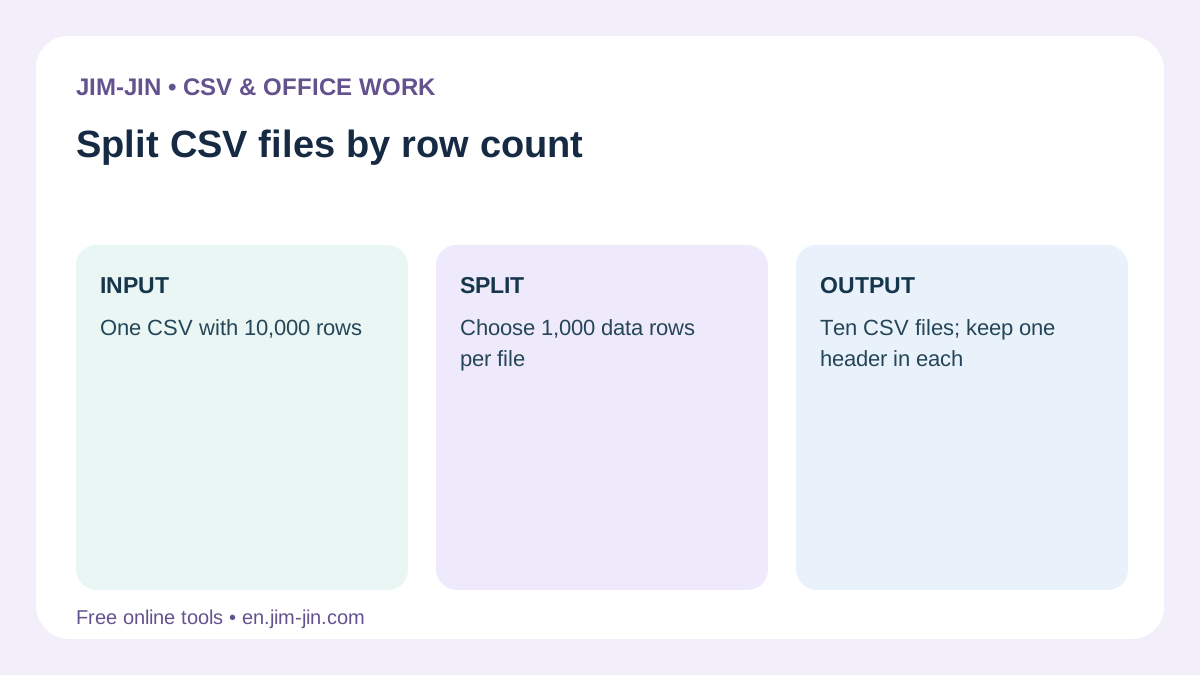
It divides CSV data from the beginning into files containing a fixed number of records.
For example, splitting 2,500 records into batches of 1,000 produces:
| Output file | Included records | Record count |
|---|---|---|
| First file | Records 1–1,000 | 1,000 records |
| Second file | Records 1,001–2,000 | 1,000 records |
| Third file | Records 2,001–2,500 | 500 records |
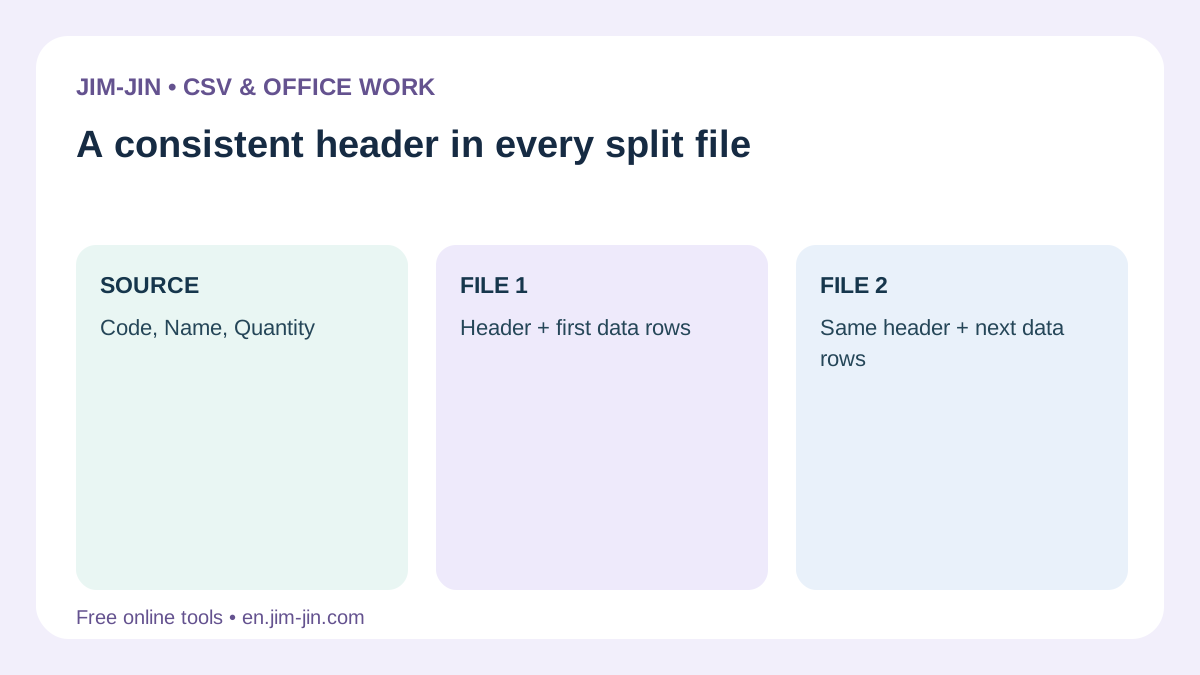
Adding headers to each file gives every batch the same field structure.
It is normal for the final file to contain fewer records. Do not add blank rows to fill it.
This method suits tasks such as:
- Import 1,000 records per batch to meet a limit
- Import a large product list in several batches
- Check import results using smaller files
- Narrow down the batch containing an error
However, splitting by row count does not produce equal file sizes. A CSV with long descriptions can be large even when it contains only 1,000 records.
Three things to check before splitting
1. Does the import limit include the header?
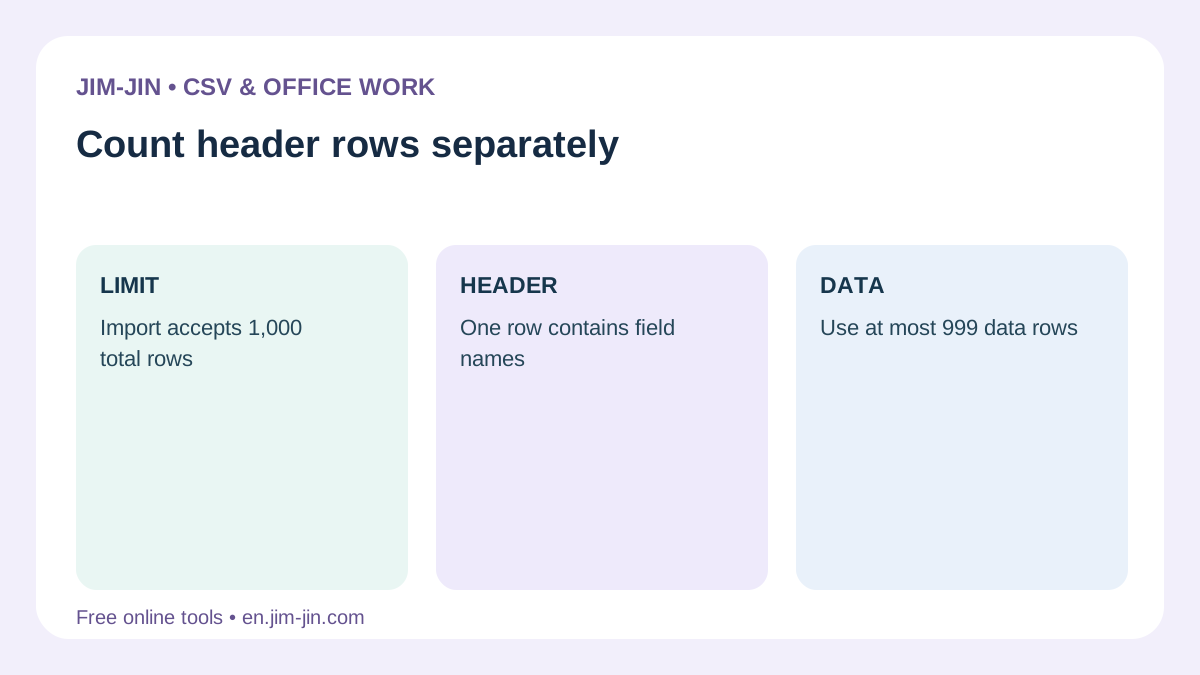
Even if the destination says “up to 1,000 rows per file”, check how those rows are counted.
| Destination requirement | How to choose the data-record count |
|---|---|
| Up to 1,000 data records | 1,000 data records plus one header row |
| Up to 1,000 table rows including the header | 999 data records plus one header row |
| Up to 5 MB per file | Check saved file size as well as row count |
When JIM-JIN treats the first row as field names, the specified count excludes the header. Enabling headers in each output adds a header row to every file.
“1,000 rows” and “1,000 records” may differ, so follow the destination’s explanation.
Line breaks within cells can also make physical line counts differ from record counts, as explained below.
2. Does the original CSV’s first row contain headers?
Headers are field names such as “Product code”, “Product name”, and “Quantity.”
For example, the following CSV has a header.
| Product code | Product name | Quantity |
|---|---|---|
| 00123 | Pen | 10 |
| 00045 | Notebook | 5 |
A CSV starting directly with values such as “00123”, “Pen”, and “10” has no header.
Treating a headerless CSV’s first row as field names misidentifies the first record as a header. Inspect the initial data after loading.
3. Do encoding and column order match the destination?
Splitting a CSV into smaller files cannot fix a format the destination rejects.
Check these requirements before splitting.
- Are headers required or prohibited?
- Are field names and column order specified?
- Is UTF-8, Shift_JIS, or another encoding required?
- Is UTF-8 with or without BOM required?
- Is a specific delimiter, such as a comma, required?
- Are required fields nonempty?
If a sample import CSV is provided, compare its headers and column order.
Split a CSV by row count with JIM-JIN
JIM-JIN’s Excel / CSV Merge and Split Tool can split by a specified count and save each part with field names.
Output files are packaged in a ZIP for downloading and extraction.
Here is how to use The following example splits a CSV with headers into batches of 1,000 data records. We will use that example.
Step 1: Choose splitting and add the CSV
Open the tool and choose “Split.”
Select the CSV or drag and drop it into the indicated area.
Processing on your computer is the default. Server processing uploads files, so review the on-screen guidance and your organization’s data-handling rules before choosing it.
Keep the original so you can compare it with the split files.
Step 2: Check encoding and first-row handling
After adding the CSV, check that Japanese text and column boundaries are correct.
For a CSV with headers, treat the first row as field names.
Check these three points.
- Field names such as “Product code” and “Product name” appear as headers
- Japanese text is not garbled
- Values appear in their intended columns
If text or columns are wrong, review input encoding and delimiters before proceeding.
Step 3: Choose “By specified row count”
Select splitting by a specified row count.
Enter the number of data records per file. For this example, enter “1000.”
If the destination allows 1,000 rows including the header, adjust to 999 data records or otherwise follow its counting method.
Step 4: Enable headers in every output file
Enable “Include field names in every file” to add headers to all split CSVs.
Check both treating the source first row as headers and including headers in each output.
For example, splitting four data records into batches of two produces:
First output CSV
| Product code | Product name | Quantity |
|---|---|---|
| 00123 | Pen | 10 |
| 00045 | Notebook | 5 |
Second output CSV
| Product code | Product name | Quantity |
|---|---|---|
| 00067 | Sticky notes | 8 |
| 00089 | File | 3 |
The second CSV also has a header, so both files have the same structure for import.
If the destination requires no header, choose not to output field names. Follow its specification.
Step 5: Choose CSV and review output requirements
Choose CSV as the save format when preparing import files.
Match encoding, delimiter, line endings, and UTF-8 BOM settings to the destination.
Settings convenient for Excel may differ from those accepted by the import system. Prioritize the destination’s guidance.
Step 6: Review the preview and save the split files
Review output count, initial records, and warnings before running. Server previews cover only an initial portion, so also inspect saved files.
If the preview is correct, run the split and save the result ZIP.
Extract the ZIP and inspect its CSVs. If the destination cannot import ZIPs, select the extracted CSV files.
Check record counts, headers, and boundaries afterward
Inspect output files before importing them.
Does the total record count match the original?
If the source has 2,500 data records, the split files should also total 2,500.
For batches of 1,000, 1,000, and 500, the total is:
1,000 + 1,000 + 500 = 2,500 records
Do not include added header rows in the data-record count.
Does every file have the correct header?
Check later CSVs as well as the first for identical headers.
Field order must also match.
Check that headers have not appeared inside the data. Splitting alone does not remove repeated headers already embedded in the source.
Are records missing or duplicated at file boundaries?
Compare the first file’s last record and the next file’s first record with the original CSV.
Product codes or reference numbers make records easier to identify.
Identifiers are not necessarily sequential. Compare the same source positions rather than checking numerical sequence alone.
CSV row counts are not always counts of line breaks
Line breaks within cells need particular care when splitting CSVs.
A note or product description with a line break can make one record span several physical lines.
RFC 4180, which describes a common CSV format, permits line breaks inside double-quoted fields.RFC 4180: CSV format
Cutting mechanically at text line breaks can split a single record in the middle.
Use a CSV-aware method that handles quoted fields and embedded line breaks.
“1,000 data records” in this article means 1,000 parsed CSV records, not necessarily 1,000 lines in a text editor.
What to check if split files still cannot be imported
An error occurs even though record counts are within the limit
Also check the file-size limit.
Fewer rows normally reduce size, but the characters per record determine actual file size.
JIM-JIN also offers splitting by approximate file size. This is an option for size limits, but verify final sizes after saving because the target is approximate.
Japanese text is garbled
Check whether input was read correctly and output encoding matches the destination.
Splitting does not restore already damaged characters. Consider exporting again from the source system if the original CSV is damaged.
Product codes lose leading zeros
When verifying or editing split files in spreadsheet software, check that product codes and postal codes are not imported as numbers.
CSV does not preserve cell display formats. The destination must also treat the relevant columns as text.
Check values such as “00123” before splitting, afterward, and after import.
Only later files fail to import
Check that every CSV starts with a header and has the same column structure as the first.
Also check any destination setting such as “Treat the first row as headers.”
Details of the same order end up in different files
Splitting by fixed count does not guarantee that all details sharing an order number remain in one file.
To keep an order or customer’s data together, consider a method such as splitting by the values of a selected field.
If one group itself exceeds the import limit, check the destination system’s supported approach.
Points to consider when importing split CSVs
Record how far you have imported to help prevent duplicate registration.
| File | Import status | Check details |
|---|---|---|
| First CSV | Done | Imported record count checked |
| Second CSV | Error | Import result under review |
| Third CSV | Not yet run | Run after reviewing the second file |
An import error does not always mean no records were saved. Some systems save a portion of the data.
Check import history and error reports before retrying.
Use filenames that make order clear. Equal-width numbering such as “001”, “002”, and “003” preserves recognizable order when sorted.
Frequently asked questions
Can I split into 1,000-record files while keeping headers?
Yes. Treat the source first row as field names, select splitting by count with 1000, and enable field names in every output file.
Each file will contain at most 1,000 data records plus one header row.
Is it a problem if the final file contains fewer rows?
The final file contains the remainder when the total is not divisible by the batch size. This is normal and usable unless the destination specifies a minimum count.
Can I add headers to a headerless CSV?
Preserving headers in each output uses the source CSV’s headers. Correct field names cannot necessarily be inferred from a headerless CSV.
If the destination requires headers, add appropriate names in a CSV editor before splitting.
Does splitting also remove duplicates?
Splitting and deduplication are separate. Repeated source records remain in the output.
Check or correct duplicates separately if needed.
Can I split without Excel?
JIM-JIN’s tool splits CSVs without opening them in Excel and copying and pasting sections.
For import files, configure headers and save format as well as the row count.