CSV merging helps combine a year’s monthly sales, product lists from multiple stores, or exports from different systems into one file.
Simply pasting files below one another can leave repeated headers inside the data or swap product-name and product-code columns.
Before combining CSVs, check header handling, field names and column order, and encoding.
This article explains preparation, merging with JIM-JIN’s Excel / CSV Merge and Split Tool, and checks afterward.
Use “Append rows” to combine CSV lists
There are two main ways to combine CSVs.
| Merge method | How data is combined | Example task |
|---|---|---|
| Append rows | Add data rows to create one table | Combine monthly sales into a year’s list |
| Join by a shared column | Match product codes or other keys and add fields | Add stock quantities from another file to a product list |
To combine multiple CSVs into one list, normally use “Append rows.”
For example, April’s 100 sales records plus May’s 120 records should produce 220 data records, excluding headers.
Adding prices from another file to rows with the same product code is a horizontal join. Choose the method that matches your goal.
Three common CSV merging problems
Problem 1: Header rows appear inside the data
If every CSV includes headers such as “Product code”, “Product name”, and “Quantity”, simple concatenation leaves headers at file boundaries.
| Product code | Product name | Quantity |
|---|---|---|
| 00123 | Ballpoint pen | 10 |
| 00045 | Notebook | 5 |
| Product code | Product name | Quantity |
| 00789 | Sticky notes | 8 |
Those repeated field names are then treated as ordinary data.
To prevent import errors and incorrect totals, treat each CSV’s first row as field names and organize the output header. This is necessary.
Problem 2: Different column orders place values in the wrong fields
CSVs containing the same fields do not necessarily use the same column order.
Consider the following two CSVs.
CSV A
| Product code | Product name | Quantity |
|---|---|---|
| 00123 | Ballpoint pen | 10 |
CSV B
| Product name | Quantity | Product code |
|---|---|---|
| Notebook | 5 | 00045 |
Appending CSV B by position alone can put “Notebook” into the product-code column, breaking field-to-value correspondence.
To combine them correctly, match field names and arrange values as follows.
| Product code | Product name | Quantity |
|---|---|---|
| 00123 | Ballpoint pen | 10 |
| 00045 | Notebook | 5 |
Equal column counts do not guarantee equal column order. Check every file’s headers before merging.
Problem 3: Different encodings cause partial garbling
Concatenating UTF-8 and Shift_JIS files without decoding them correctly can produce a file that no single encoding reads properly.
Read each source using its correct encoding, then save the combined output in the destination’s required encoding.
Matching file names or extensions do not guarantee matching encoding or delimiters.
What to check before merging
Keep all original CSVs and verify the intended files before starting.
| Item | What to check |
|---|---|
| Selected files | Have you selected the same file or an old version twice? |
| Reporting period | Are months or dates duplicated or missing? |
| Headers | Does the first row contain field names or data? |
| Field names | Do equivalent fields have different names? |
| Column order | Does the order differ between files? |
| Encoding | Can Japanese text be read correctly? |
| Delimiter | Are comma, tab, or other delimiter settings correct? |
| Record count | How many records should the combined file contain? |
| Output format | What encoding and column order does the recipient require? |
For sales amounts, check whether fields with the same name use different currencies or include/exclude tax.
Identical field names do not guarantee identical data meaning.
Combine files with JIM-JIN’s Excel / CSV Merge and Split Tool
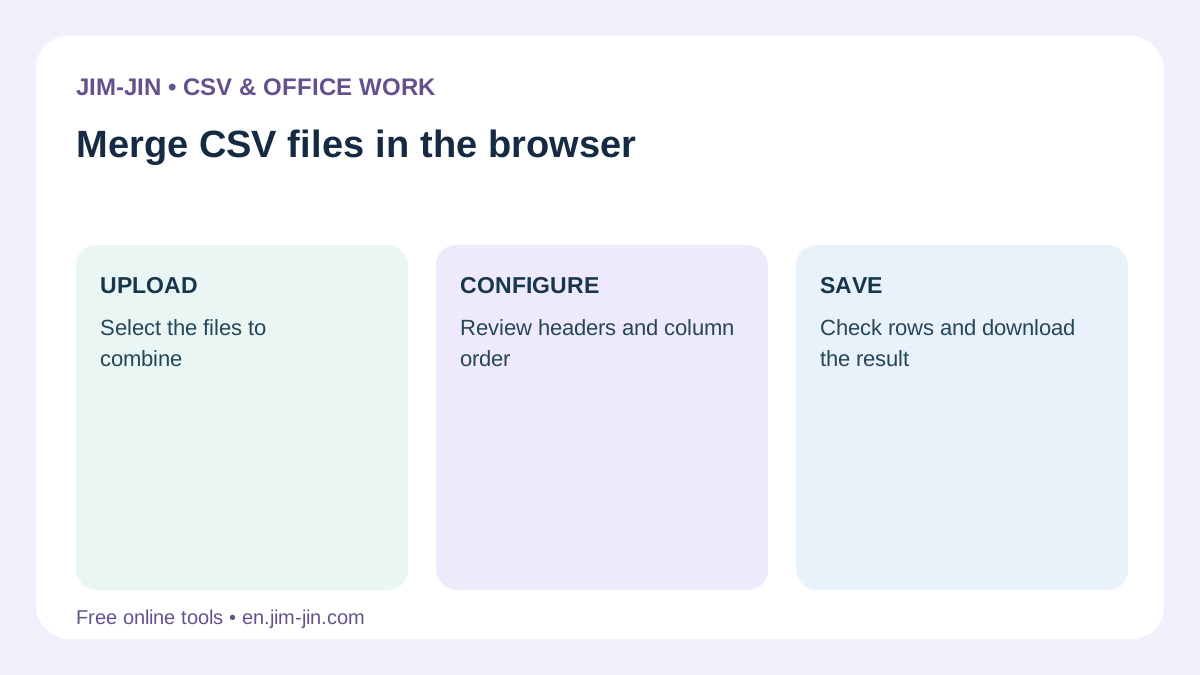
JIM-JIN’s tool combines and splits multiple CSV or Excel files.
When “Append rows” treats the first row as field names, it can align columns by name even when their order differs.
Fields missing from a source file become empty. This helps you check differences that simple copying and pasting may overlook.
Step 1: Choose merging and a processing method
Open the tool and select “Merge.”
You can process on your computer or on the server. The default is processing on your computer.
Server processing uploads files. Check the privacy notice, usage conditions, available methods, and limits shown on screen.
Step 2: Add the CSVs to combine
Select the CSV files or drag and drop them.
Review names and file count. Selecting the same CSV twice can duplicate its records.
Check file order, such as chronological month order or your preferred store order.
However, arranging files differs from sorting all data by date or another field. Also check the order within each file.
Step 3: Review encoding, delimiters, and first-row handling
Check that Japanese text is readable and values are separated into the correct columns.
Review encoding if text is garbled, or delimiters if all values appear in one column.
If the first row contains field names, enable first-row header handling.
Treating a headerless file as having headers can lose its first record. Treating a file with headers as headerless mixes field names into the data.
If header and headerless settings are mixed, JIM-JIN asks you to make them consistent. Match the actual contents of every file.
Step 4: Choose “Append rows”
Use “Append rows” for monthly, store-based, or similar lists.
With first-row headers enabled, alignment uses field names rather than positions.
Matching field names can align correctly even with different orders, for example:
- CSV A: Product code, Product name, Quantity
- CSV B: Product name, Quantity, Product code
Do not assume differently named fields such as “Product code” and “Product number” automatically become the same field.
Standardize names before merging or inspect the output columns.
Step 5: Check field names, empty values, and warnings
JIM-JIN may normalize differences such as surrounding spaces or letter case in field names. Review any confirmation messages.
A field present in only one CSV will be empty in rows originating from other CSVs.
For example:
| File | Fields included |
|---|---|
| CSV A | Product code, Product name, Quantity |
| CSV B | Product code, Product name, Quantity, Notes |
After merging, the Notes field may be empty for CSV A’s rows. An empty field absent from the original file is not necessarily an error.
But equivalent fields with different names can also become separate columns. Compare columns with many empty values against the source headers.
Step 6: Choose output settings and save the merged CSV
Choose CSV output and review encoding, delimiter, line endings, and BOM for the destination.
Review the displayed row count, column count, initial data, and warnings before running the merge.
After processing, confirm that the merged file exists in the chosen folder and keep it separately from the originals.
Verify processing completion and successful saving to your computer separately.
Points to consider when standardizing headers
Give equivalent fields consistent names
If “Product code” and “Product number” contain the same information, standardizing the names before merging makes handling easier.
You can correct headers in working copies with JIM-JIN’s CSV Editor.
Do not infer that fields are equivalent simply because their names are similar.
For example, these fields may differ in meaning.
- Order date and shipping date
- Product price and sales amount
- Customer number and member number
- Tax-inclusive and tax-exclusive amount
Check the source meaning and export specification before renaming fields.
Check for duplicate field names within one CSV
If a CSV has two columns named “Amount”, matching them can be ambiguous.
Use distinct headers such as “Amount excluding tax” and “Amount including tax.”
Repeated header rows across files and duplicate column names within a single header row are separate issues.
Align column order when no headers exist
Headerless CSVs cannot be matched by field names.
Align each column’s meaning and order before merging. Alternatively, add headers to working copies and use consistent settings for all files.
Do not assume the same column count means the same format.
Check record counts and file boundaries afterward
Inspect the merged CSV near each source-file boundary, not just its first few rows.
Compare data-record counts excluding headers
For example, these source counts should produce 300 records in a vertical merge without deletion or filtering.
| Source file | Record count |
|---|---|
| April | 100 records |
| May | 120 records |
| June | 80 records |
| Total | 300 records |
Compare the number of records parsed as CSV.
A quoted CSV value may contain line breaks, so a text editor’s line count may differ from the record count.RFC 4180: CSV headers, quotation marks, and line breaks inside fields
Check headers and column alignment at file boundaries
Near the start of the second and third files, check these points.
- Did header rows become data?
- Are product codes in the product-code column?
- Does Japanese text become garbled partway through?
- Are the last and next first records intact?
- Is any data duplicated?
A correct record count does not guarantee correct column contents. Check both count and values.
Check leading zeros and long numbers too
Opening the merged CSV directly in Excel may remove leading zeros or convert long identifiers to numbers.
Verify using a text-preserving CSV editor, or import the relevant Excel columns as Text.
Distinguish changes in saved values from changes caused by the application used for verification.
Excel Power Query is another option
For recurring merges of consistently structured data, consider Power Query’s “Append Queries.”
Import each CSV, configure first-row headers and data types, then append the queries into one table.
Power Query appends by column name rather than position. Columns absent from a source table become null in the combined result.Microsoft Learn: Append queries
To combine files without Excel, JIM-JIN lets you review each file’s import settings and the combined result.
Frequently asked questions
Does merging automatically remove duplicate data?
Merging and deduplication are separate operations.
Repeated selections or overlapping source data can leave duplicates after merging.
Multiple rows with the same product code may represent valid sales on different dates. Decide what identifies a duplicate before removing records.
Can files with different column orders be merged?
Matching by field name can combine different column orders.
JIM-JIN’s “Append rows” aligns by names when the first row is treated as a header. Check headerless files or differently named fields beforehand.
Can CSVs with different numbers of fields be combined?
JIM-JIN can combine by field names and leave missing fields empty.
A successful merge does not guarantee the recipient will accept the format. Check output column count and required fields.
Can UTF-8 and Shift_JIS CSVs be combined?
Read each file using its correct encoding and choose one encoding for the output.
Check each source’s Japanese text. If the output encoding cannot represent some characters, follow the guidance and review settings or data.
Does merging sales also total quantities for the same product?
Appending rows normally adds records. It does not aggregate quantities by product.
Treat combining files and totaling by product as separate tasks, performing aggregation in another step when needed.
When combining multiple CSVs, handle headers correctly, check field correspondence rather than position alone, and compare output counts and data. JIM-JIN’s Excel / CSV Merge and Split Tool helps combine files while checking column-order and encoding differences.