Need to correct a few product names in a CSV, remove unwanted rows or columns, or replace repeated words? A browser-based CSV editor can help.
You can view and edit CSV data as a table even without Excel. An editor that treats values as text helps preserve leading zeros in product codes and values that resemble dates.
JIM-JIN’s CSV Editor supports cell editing, adding and deleting rows and columns, copying and pasting, and finding and replacing text. You can correct part of a CSV and save it directly from your browser.
This article explains how to open, edit, and save a CSV using JIM-JIN’s CSV Editor.
How can I edit a CSV without Excel?
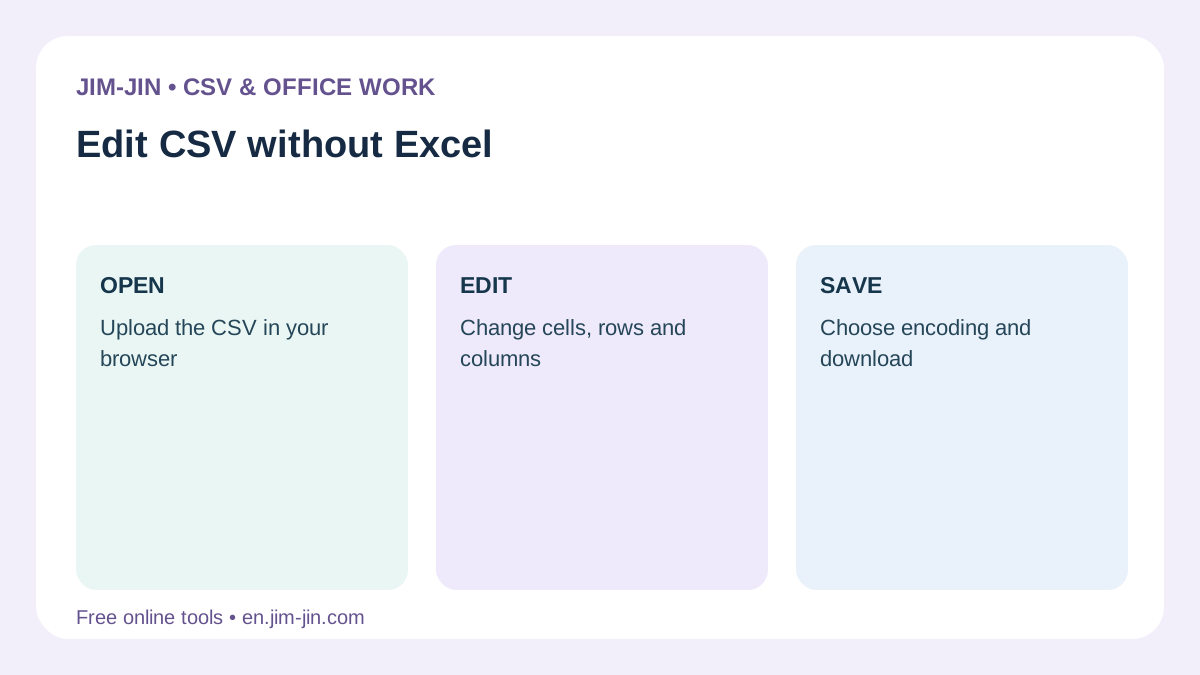
Options include a browser-based CSV editor, installed CSV software, and a text editor.
| Editing method | Suitable tasks | What to check |
|---|---|---|
| Browser-based CSV editor | Edit cells and add or remove rows and columns in a table | Text preservation, supported formats, processing method, and usage limits |
| Installed CSV editing software | Recurring work and advanced features specific to the software | Supported operating systems, installation availability, and required features |
| Text editor | Inspect CSV contents or make very small corrections | Whether commas, quotation marks, and line breaks inside cells can be preserved |
A text editor displays values separated by commas or other delimiters. You can inspect the contents, but identifying the correct field can be difficult in files with many columns.
A table-based CSV editor is convenient when you need to check field positions while correcting product names or addresses.
What JIM-JIN’s CSV Editor can do
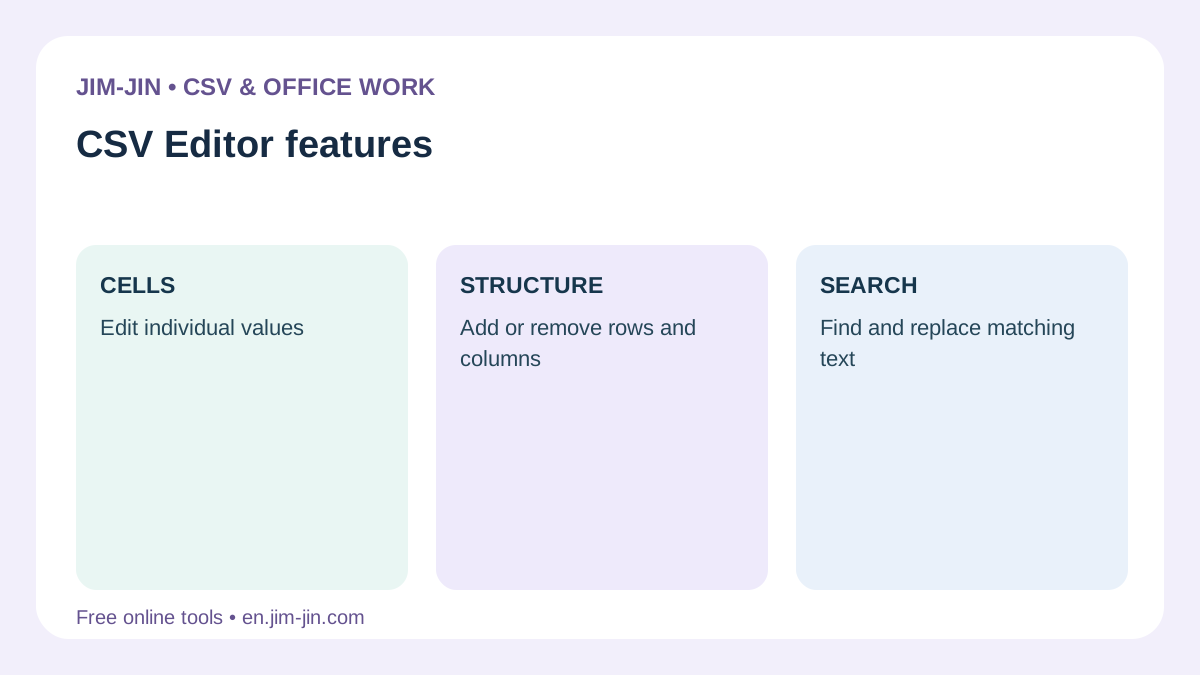
JIM-JIN’s CSV Editor loads a CSV into a table with visible rows and columns.
| Feature | What it does | Example use |
|---|---|---|
| Cell editing | Enter and correct text, including line breaks within cells | Correct product names or notes |
| Copy and paste | Duplicate cells or a continuous range | Enter the same category in multiple rows |
| Add or delete rows | Insert above or below a selected row, or delete the entire row | Add a product or remove an unwanted record |
| Add or delete columns | Insert to the left or right of a selected column, or delete the entire column | Add a notes field or remove an unwanted field |
| Find and replace | Find text, replace individual matches, or replace all matches | Change department or category names |
| Undo and redo | Undo an edit or redo an undone operation | Correct accidental deletion or replacement |
| Display adjustments | Adjust column width, row height, and text wrapping | Review long addresses or descriptions |
| Save settings | Choose encoding, delimiter, line endings, and other settings | Create a CSV suitable for the destination system |
Preserve leading zeros and long numbers as text
JIM-JIN’s CSV Editor treats cell values as text.
For example, product code “00123” and customer number “000045” can be edited without automatic conversion to numbers “123” and “45”. Long numbers and date-like values are also preserved as entered text.
However, zeros or digits already lost before importing the file will not be restored automatically. Start with an unedited copy of the original CSV.
Designed for correcting CSV data rather than spreadsheet calculations
JIM-JIN’s CSV Editor edits CSV values and structure. It does not calculate formulas or functions or create charts as Excel does.
It is useful for correcting product names, adding notes columns, and replacing category names.
What to check before editing
First, keep a copy of the original CSV. Keeping both versions makes it easier to compare changes and recover from mistakes.
Also check the following points.
- Which cells or fields need correction?
- Will adding or deleting rows and columns still meet the destination system’s requirements?
- Is a particular encoding or delimiter required?
- Is the file within the limits shown on screen?
- What does the guidance say about where editing takes place and temporary server storage?
JIM-JIN’s CSV Editor processes data on your device by default. If you choose temporary server storage, the original CSV and edit history are sent to this site’s server.
Choose deliberately between editing on your device and temporary server storage. Follow your workplace’s rules when handling business data.
Step 1: Open the CSV and check its text and column boundaries
The basic workflow is to open a file, edit the table, and save it to your computer.
Select one CSV to edit. You can also load it by dragging and dropping the file.
- Open the CSV Editor.
- Check the usage limits and processing guidance.
- Select the CSV or drag and drop it.
- Check Japanese text and column boundaries in the loaded table.
- Check that leading zeros in product codes remain.
Review import settings before editing garbled text or misaligned columns
Encoding and delimiters are detected automatically, but ambiguous files require you to review the settings.
If Japanese text is garbled, all data appears in one column, or columns are misplaced, check the settings under “When text is garbled or columns are misaligned.”
Choose the correct encoding or delimiter and start editing only when the display is correct. If confirmation is requested, review the settings and select “Open the table with these settings.”
Do not try to fix encoding problems or misaligned columns by manually editing cells alone. First check whether the file was imported correctly.
The first row’s field names are editable too
A CSV’s first row may contain field names such as “Product code” and “Product name.”
JIM-JIN’s CSV Editor treats the first row as ordinary data. Field names can be edited and are not automatically protected.
Before deleting rows or replacing all matches, check the selection to avoid changing the header unintentionally.
Step 2: Correct cell text
Once the table displays correctly, edit the cells you need.
For example, suppose you want to correct only the product name in this CSV.
| Product code | Product name | Category |
|---|---|---|
| 00123 | Blue ballpoint pen | Stationery |
| 00045 | A4 notebook | Stationery |
Keep product code “00123” unchanged and change “Blue ballpoint pen” to “Blue ballpoint pen 0.5 mm.”
- Select the product-name cell to correct.
- Double-click the cell or press F2 to begin editing.
- Correct the text and confirm the edit.
- Check that the product code and category in the same row are unchanged.
You can also begin editing by typing a character into a selected cell.
Adjust column width or wrapping for long text
Adjusting column width and row height makes long addresses and descriptions easier to review. Text wrapping is also available.
Column widths and wrapping only improve the on-screen display. CSV files do not store visual formatting like Excel workbooks.
Use copy and paste for repeated values
Copy and paste the same category or staff name into multiple cells. You can also handle a continuous block of cells together.
Before pasting, check the selected range and starting position. Pasting multiple cells may overwrite neighboring columns.
Leading zeros already missing from copied values will not be restored automatically when pasted.
Step 3: Add or delete rows and columns
Use row and column operations to add new data or remove unnecessary fields.
Add a row and enter new data
To add one product, select a row near the insertion point and insert a row above or below it.
- Select the row number at the intended insertion point.
- Choose whether to insert above or below.
- Enter the product code and name in the new row.
- Check for missing values and correct column positions.
If you copy an existing row, remember to change product codes, names, and other values that must differ.
Add a column for notes or other fields
To add notes, select a reference column and insert a column on its left or right.
If the CSV has a header row, enter a field name in the new column’s first row too.
Business systems may require a fixed column order and count. Even a column added for readability can cause an import error if it breaks those requirements.
Distinguish clearing contents from deleting rows or columns
Clearing a cell and deleting its entire row or column produce different results.
| Operation | Result | Suitable situation |
|---|---|---|
| Clear cell contents | The cell remains but becomes empty | Remove only the text in a notes field |
| Delete a row | All data in that row is removed | Remove an unwanted record |
| Delete a column | That field is removed from every row | Remove an unwanted field |
Check the selection before acting to avoid deleting a whole row when you intended only to clear a product name.
Step 4: Use find and replace for repeated text
JIM-JIN’s CSV Editor can replace individual matches or all matches within the target range.
Case-sensitive matching and exact matches are supported.
For example, replace category “Stationery” with “Office supplies.”
Select the target column before searching
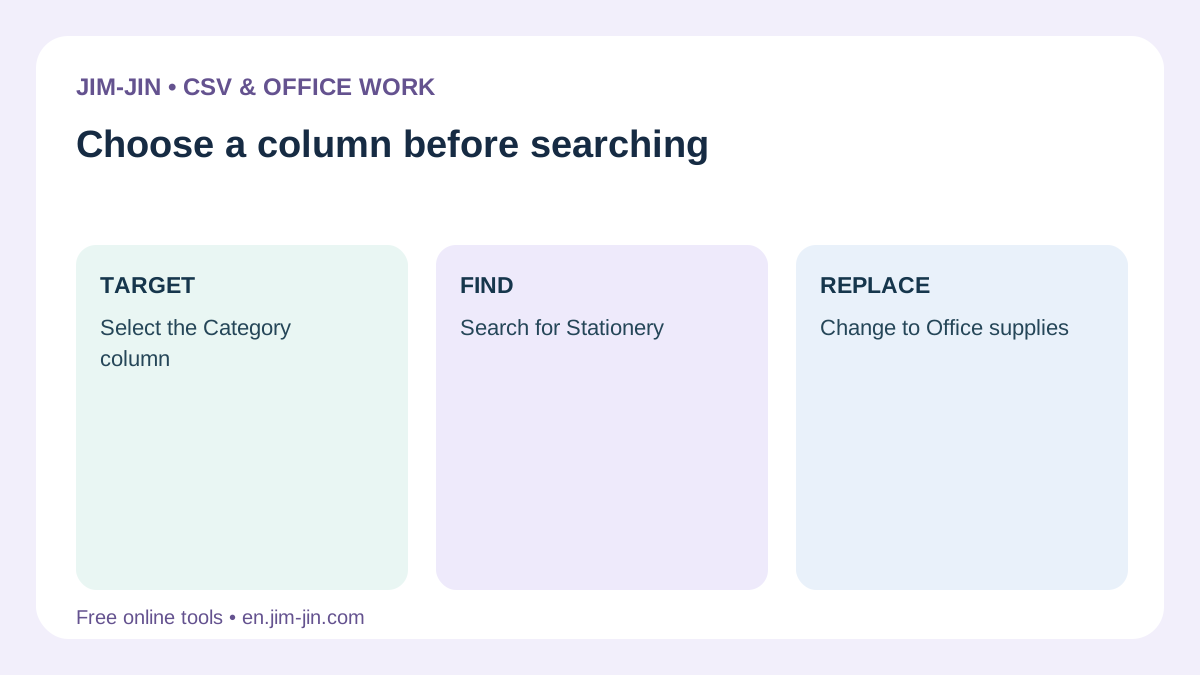
The same word may appear in descriptions and notes as well as the category column.
To change only categories, select the category column before finding and replacing.
- Select the category column you want to change.
- Enter “Stationery” in the search field.
- Enter “Office supplies” as the replacement.
- Check the matching conditions and target range.
- Replace the first match and inspect the result.
- If it is correct, replace the remaining matches together.
When only a single ordinary cell is selected, find and replace searches the entire table. To change only a specific column or range, explicitly select the column, row, or continuous range.
Choose exact or partial matching
Replacement results depend on whether the search term may be part of a cell or must match its entire contents.
| Original cell | Search term | Replacement text | Partial match | Exact match |
|---|---|---|---|---|
| Stationery | Stationery | Office supplies | Office supplies | Office supplies |
| Stationery set | Stationery | Office supplies | Office supplies set | Keep unchanged |
Exact matching helps when only cells containing one particular category value should change.
Regular-expression searches are not supported.
“Replace all” applies to the entire target range
Even if the number of displayed search results is limited, “Replace all” applies to the whole target range.
Changes are not necessarily limited to the visible matches. Check the target columns, range, and matching conditions first.
If an unintended change occurs, undo it and revise the range or conditions.
Step 5: Save the edited CSV to your computer
When editing is complete, follow “Save to your computer” to save the edited CSV.
Before saving, check these points.
- Are the corrected cell values right?
- Are rows and columns you intended to keep still present?
- Do field names and column order match the destination requirements?
- Are leading zeros and long numbers unchanged?
- Did find and replace affect only the intended range?
Match the save format to the destination requirements
If necessary, review output settings under “Change the save format.”
Choose encoding, delimiter, line endings, BOM, and quotation settings to match the recipient or import system.
For example, if a system requires UTF-8 without BOM, use that setting. Do not choose a conflicting setting solely to avoid garbled text.
If the selected encoding cannot represent a character, review the warning and the affected character rather than forcing a substitution.
Reopen the saved file and check it
After downloading, confirm that the file exists in the chosen folder on your computer.
Then reopen it in the CSV Editor or a similar tool and inspect the changes. Opening it directly in Excel can cause numbers or dates to be converted again, so choose your verification method carefully.
Verify editing and successful file saving separately.
Tasks suited to JIM-JIN’s CSV Editor
Correct product names and notes
Keep product codes unchanged while correcting names or descriptions. For a few corrections, edit the relevant cells in sequence and save.
Remove unwanted fields from a submission CSV
When the recipient clearly does not need a column, select and delete it.
Preserve required fields and column order. Keeping the original file also helps if another submission format is needed later.
Change department or category names in bulk
Find and replace helps change repeated names, for example from “Sales Team 1” to “First Sales Division.”
Selecting the department column and using exact matches can help avoid changing text in notes.
What to check when editing goes wrong
| Problem | What to check |
|---|---|
| Japanese text is garbled | Check the import encoding |
| All data appears in one column | Check delimiters such as commas or tabs |
| The table does not open and awaits confirmation | Review the import settings, then open the table |
| Replacement affected more than intended | Check the selection and exact or partial matching |
| The file is too large to load | Check the displayed file-size, row-count, and column-count limits |
| A character warning appears when saving | Check whether the selected encoding can represent the character |
Large CSV files are affected by your computer’s and browser’s available memory as well as usage limits. If editing is difficult, consider splitting the file into the required sections.
Frequently asked questions
Can I use it without Excel installed?
Excel is not required to load or edit CSV data because you work in your browser. Check the screen for file-size limits and supported environments.
Can I edit Excel files directly?
JIM-JIN’s CSV Editor is designed for CSV files. It does not directly edit Excel workbooks with multiple sheets or formatting.
Can I use formulas or functions?
It does not calculate formulas or functions. Formula-like values are treated as text.
Another spreadsheet application may interpret them as formulas when opening the saved CSV. If a save warning appears, check the contents and intended application.
Can I preserve leading zeros in CSV data?
If zeros remain in the original CSV, you can edit while preserving cells as text. Another application may remove them again if it imports the saved values as numbers.
Are files sent to the server?
Default device-side processing differs from optional temporary server storage. Choosing server storage sends the original CSV and edit history. Check the selected method and privacy guidance before working.
Can I undo an incorrect edit?
Undo and redo are available. History has limits, so also keep the original file.
To edit a CSV without Excel, open the table in JIM-JIN’s CSV Editor, correct the required cells, rows, and columns, and check the saved file as part of your workflow. Whether making a few corrections or replacing text in bulk, confirm the target range before proceeding.