Have you opened a CSV in Excel and seen product code 00123 become 123, or postal and phone numbers lose their leading zeros?
This happens when digit sequences are treated as numbers. For product and postal codes, leading zeros are important information.
To keep leading zeros in CSV data, treat the relevant values as text from the moment they are read.
This article covers editing with a CSV editor or Excel, checking saved files and dealing with zeros already lost.
Why do leading zeros disappear from CSV files?
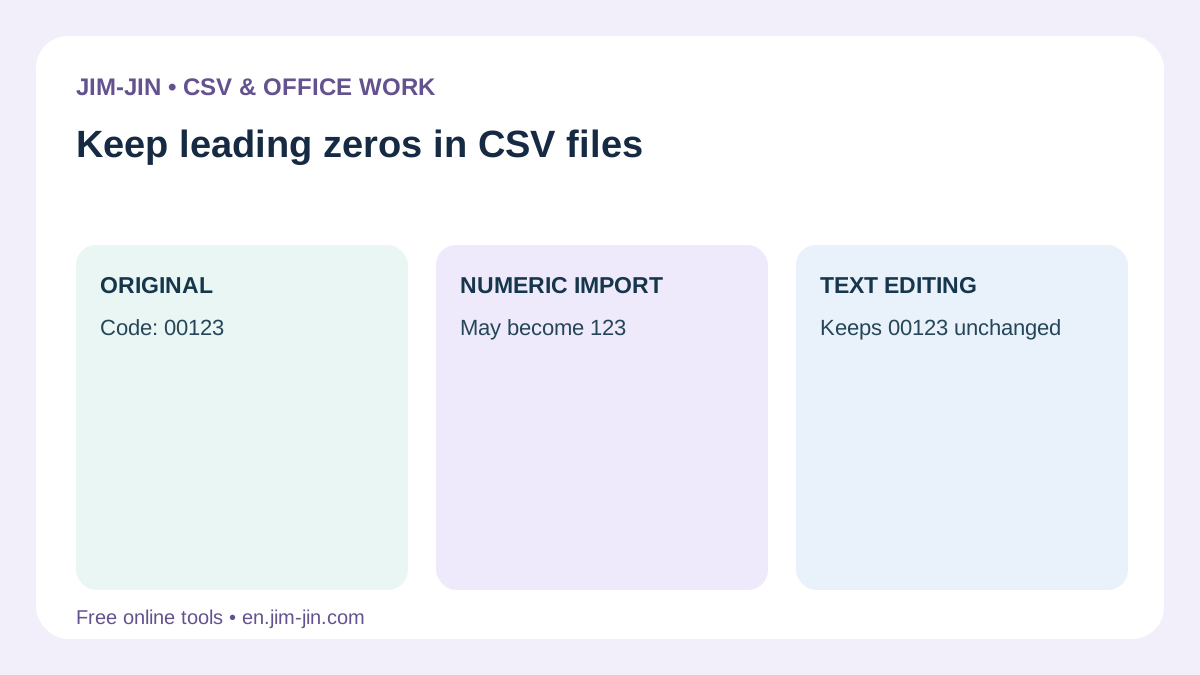
CSV stores table values as text. Applications opening it may infer numbers or dates from those values.
For example, 00123 read as a number is numerically the same as 123, so leading zeros are removed.
| Data type | Example value to preserve | When treated as a number |
|---|---|---|
| Product code | 00123 | 123 |
| Customer number | 000045 | 45 |
| Postal code without a hyphen | 0600001 | 600001 |
| Phone number without hyphens | 0312345678 | 312345678 |
The table contains illustrative examples.
Excel may remove leading zeros through automatic numeric conversion. Microsoft recommends treating such data as text to preserve it.Microsoft Support: Keeping leading zeros and large numbers
Distinguish quantities from identifiers
Quantities and amounts are numbers used in calculations. Postal and product codes identify destinations or products.
Some systems treat 00123 and 123 as different products. Even if an identifier contains only digits, generally treat it as text when it is not used for calculations.
CSV does not store Excel cell formatting
Excel workbooks can store cell formats and data types, but CSV cannot store Excel instructions telling readers to open a column as text.
Even if a CSV correctly contains 00123, another person opening it directly in Excel may see 123.
You need both to preserve zeros during editing and to open the saved file without losing them.
Before editing, check whether the original CSV retains zeros
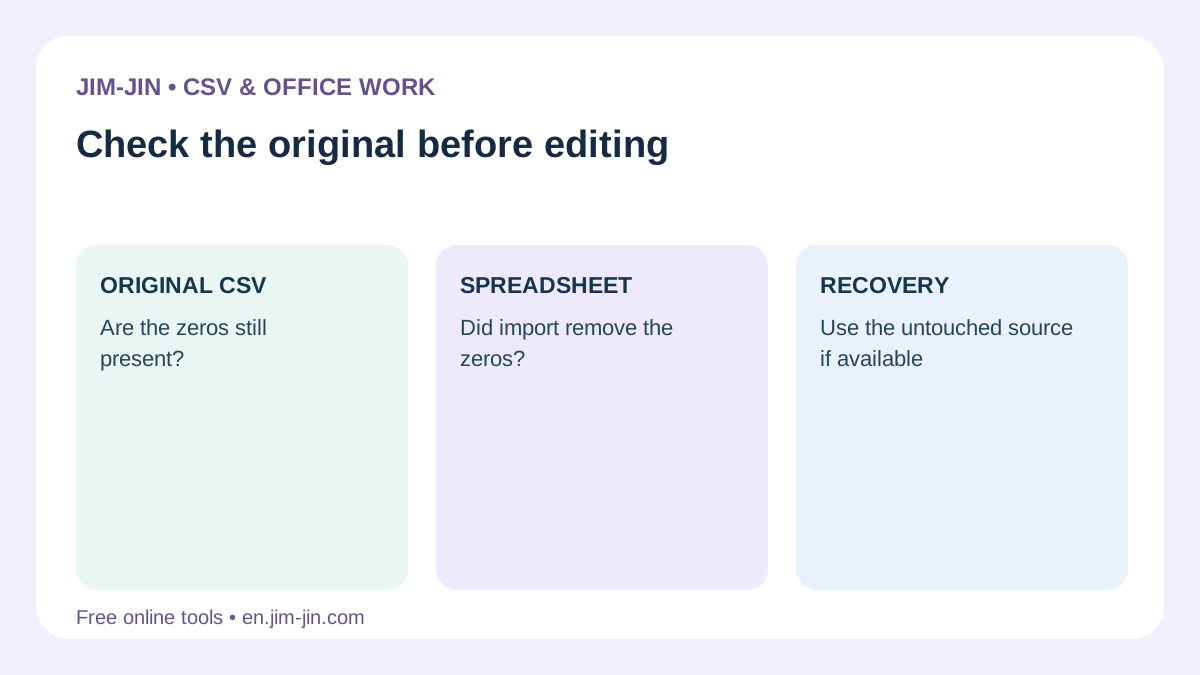
First keep a copy of the unedited CSV. Use a working copy for checks and edits.
Even if Excel displays values without zeros, the original may retain them if it has not been overwritten.
Open the original in a CSV editor or text editor and check the values.
| Original CSV contents | Action |
|---|---|
| 00123 is still present | Read it again as text |
| It already contains 123 | Check an unedited copy or the export source |
| The correct number of digits is unknown | Compare with the product master or management rules |
Even when zeros are missing, check when values changed before adding zeros manually.
Method 1: Edit values as text in a CSV editor
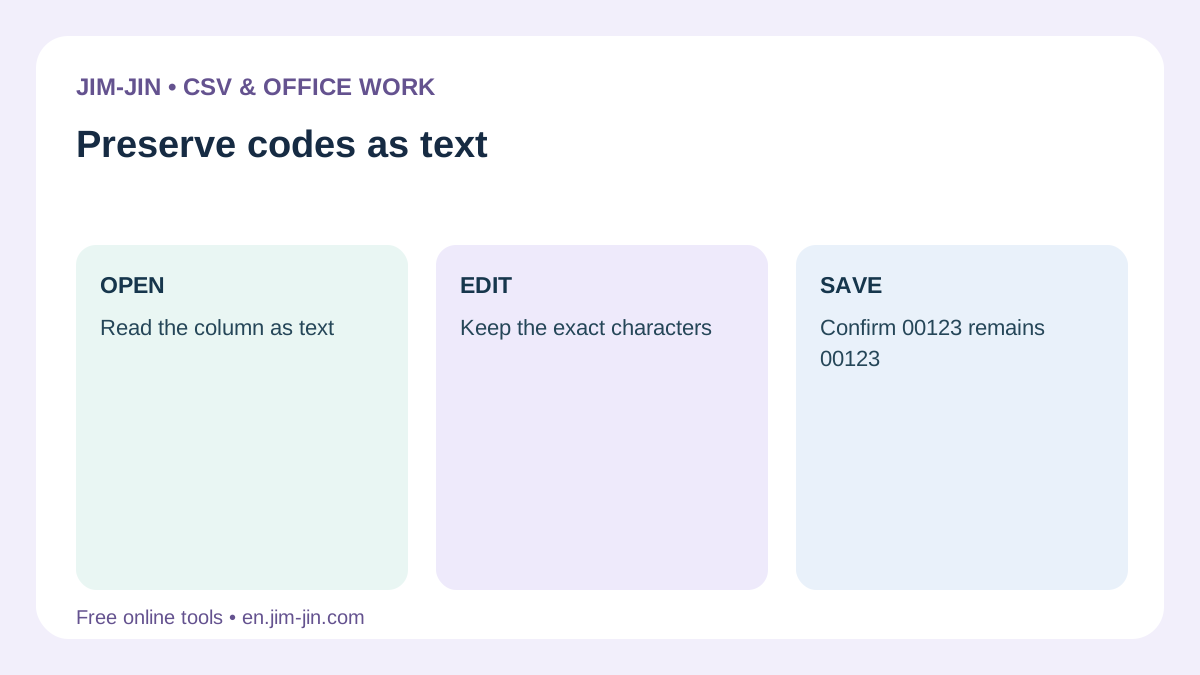
For changing part of a CSV, an editor that treats values as text is an option.
JIM-JIN’s CSV Editor is designed to retain cell values as text. Edit leading zeros, long numbers and date-like values without automatically converting them to numbers or dates.
Basic editing workflow
- Keep the unedited original and prepare a working CSV.
- Load the file in the CSV Editor.
- Check Japanese text, column boundaries and leading zeros.
- Edit the necessary cells, rows or columns.
- Check save settings for the destination and download the edited CSV.
- Read the saved CSV again and verify that relevant values have not changed.
For example, to change only a product name for code 00123, leave the code intact and edit the product name cell.
Check before pasting from Excel too
An editor retaining text cannot restore zeros already lost at the copy source.
If you copy after Excel has changed 00123 to 123, the pasted value may also be 123.
Load the original CSV directly or verify that the source retains zeros before pasting.
Method 2: Import relevant columns into Excel as text
When editing in Excel, do not double-click the CSV directly. Specify relevant columns as text during import.
Here is a typical From Text/CSV workflow in Excel for Windows. Screens and menu names vary by version.
Specify column types before loading data
- Open a blank workbook in Excel.
- On the Data tab, choose From Text/CSV.
- Select the unedited CSV.
- Check encoding and delimiters, then choose Transform Data.
- In Power Query, select postal or product code columns.
- Change the data type to Text.
- If prompted, choose Replace Current or the equivalent option to replace the existing type conversion.
- Check that zeros remain, then choose Close & Load.
Adding a text conversion after an automatic numeric conversion may not restore zeros already lost.Configure the original data to be read as text. That is the key.
Microsoft also describes changing Power Query columns to text and replacing the current type conversion.Microsoft Support: Treating imported data as text
Format new cells as text before entering values
When adding new product codes to imported data, format the destination cells as text in advance.
- Select the destination cells or columns.
- Open Format Cells.
- Choose Text as the format.
- Then enter or paste product codes and other identifiers.
Changing to text after entering 00123 and getting 123 does not automatically restore the zero. Set the format before entering data.Microsoft Support: Formatting numbers as text
Check automatic conversion settings in supported Excel versions
Supported Microsoft 365 and Excel 2024 versions provide controls for automatic data conversion.
Disabling Remove leading zeros and convert to a number can retain digit sequences with leading zeros as text. Behavior varies by version and import method, so verify it with your actual CSV afterward.Microsoft Support: Data import and analysis options
Displaying zeros differs from saving text containing zeros
In Excel, applying the custom number format 00000 to numeric 123 can display 00123.
The underlying cell still contains numeric 123; the display format pads it with zeros.
| Method | Cell value | Screen display |
|---|---|---|
| Enter 00123 as text | Text 00123 | 00123 |
| Apply format 00000 to numeric 123 | Number 123 | 00123 |
Display formats are useful for presenting Excel tables, but CSV output and the destination’s interpretation may differ.
Depending on export behavior, displayed zeros may be included in CSV output. However, CSV does not retain the original cell format, so reopening may convert the value to a number again.
For product codes sent to another system, check the actual saved CSV values rather than appearance alone.
References: Microsoft Support: Displaying leading zeros with custom number formats
Check zeros in the saved CSV
Double-clicking a CSV after editing may cause Excel to read it as numbers again, making zeros appear missing.
This does not distinguish zeros lost during saving from zeros removed when reopening.
Use one of these checking methods.
- Read it with a CSV editor that treats values as text.
- Check values in a text editor.
- Use Excel data import and specify relevant columns as text.
If the saved CSV contains 00123, the file itself retains the zeros. The destination must also import product codes as text.
Checks after saving
- Do product and customer codes retain leading zeros?
- Do postal code lengths and hyphens match requirements?
- Are the final digits of long numbers unchanged?
- Is Japanese text readable?
- Are values in unedited columns unchanged?
- Do record and column counts match expectations?
Encoding and data types are separate settings. Saving as UTF-8 or adding a BOM alone does not necessarily prevent loss of leading zeros.
What to do if leading zeros are already lost
When the original retains zeros
Read the original CSV again as text if it still has the zeros.
Before repairing the working file, check an original download not yet overwritten or the email attachment.
When the required length is fixed
If a code must always contain five digits, for example, missing positions can be padded with zeros.
In Excel, the following formula can turn the number in A2 into a five-digit text value.
=TEXT(A2,”00000″)
If A2 contains 123, the result is text 00123. For a fixed seven-digit value, use 0000000 in the format.Microsoft Support: TEXT function
However, this is padding zeros according to a length rule, not investigating and restoring the original value.
Check blanks, excessive lengths and non-digit values separately, and compare with original management data before use. To replace the original column with formula results, check them in a working copy, then paste as values.
When the correct length is unknown
The value 123 alone cannot tell you whether the original was 123, 0123 or 00123.
Uniformly padding codes of mixed lengths may change them into different identifiers. Return to a product master, customer ledger or source system that records correct values.
If numeric treatment has altered other digits in a long identifier, adding zeros alone cannot fix it.
Precautions for postal and product codes
Match postal code hyphen requirements too
Destinations may require different formats for 0600001 and 060-0001.
Do not add hyphens merely to retain zeros; follow submission specifications. Comparing postal code lengths with addresses can also help spot errors.
Treat product codes as text even when they contain only digits
Product codes are not quantities for calculation. Leading zeros, letters and hyphens are all part of the identifier.
Whether 000123 and 123 are equivalent depends on management rules. Do not add or remove zeros at your own discretion.
Apply the same approach to phone numbers and long reference numbers
Phone, membership and order numbers may also be better handled as text.
Long identifiers can lose digit information during numeric import, not only leading zeros. Check text handling before entering or importing them.
Frequently asked questions
Do double quotes around CSV values preserve zeros?
Not necessarily.
CSV double quotes also distinguish values containing commas or newlines from delimiters. Even a quoted value such as “00123” can lose zeros if the reader interprets it as a number.
Specify text handling when importing.
Should I add an apostrophe at the beginning?
When entering directly into Excel cells, an initial apostrophe can indicate text.
Adding apostrophes throughout a CSV may make other tools or systems treat them as part of values. Prefer specifying text in the reader over adding them as a general CSV workaround.
Does UTF-8 or BOM conversion prevent loss of zeros?
Changing the encoding alone does not.
UTF-8 and BOM help decode characters correctly. Losing zeros depends on whether decoded values are treated as numbers or text.
Can CSV guarantee zeros survive when the recipient opens it in Excel?
CSV alone cannot fix the recipient’s Excel import behavior.
Ask recipients to import relevant columns as text. If they only need Excel viewing or editing and CSV is not required, consider sending an Excel workbook with columns set to text.
To edit a CSV without losing leading zeros, keep the original, treat relevant values as text from import onward, and check the saved CSV. Do not convert postal and product codes to numbers merely because they look numeric.