Japanese text remains unreadable after changing the CSV encoding. A repair tool cannot restore some characters. Saving again in Excel makes the display worse. Before repeating conversions, check the file’s state.
When garbled CSV text will not clear up, check three things: the original file, the encoding used to read it, and whether it was saved after becoming garbled.
If only opening settings are wrong, rereading with the correct encoding may help. If conversion or saving has lost the original character information, return to an unedited file or the source data.
This article explains how to distinguish causes and decide what to check next.
Check in this order when CSV text remains garbled
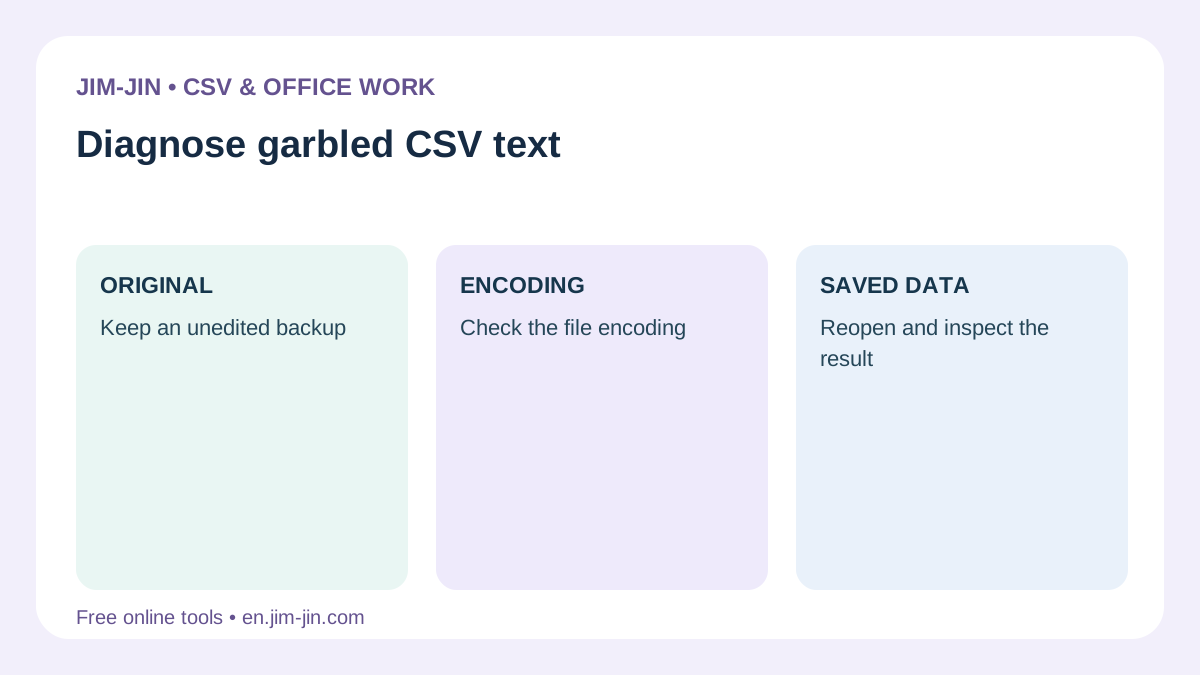
First find the situation closest to yours.
| Current situation | Possible cause | First action |
|---|---|---|
| A newly downloaded CSV is garbled in Excel | The import encoding does not match | Keep the original and open it with a specified encoding |
| A converted CSV is still garbled | The source encoding was selected incorrectly, or reopening settings do not match | Return to the pre-conversion file and check reading and saving settings separately |
| You overwrote the file while text was garbled | Incorrectly decoded text may have been saved | Look for an unedited copy, a fresh download or a backup |
| Only some characters become ? or � | A decoding error or character replacement in an earlier conversion may have occurred | Check the same locations in an unedited original |
| A combined CSV becomes garbled partway through | Files with different encodings may have been concatenated directly | Check each file before combining it |
Do not delete the garbled file or overwrite the original at this stage. Keeping copies for comparison makes it easier to identify where the problem began.
Check 1: Is an unedited original available?
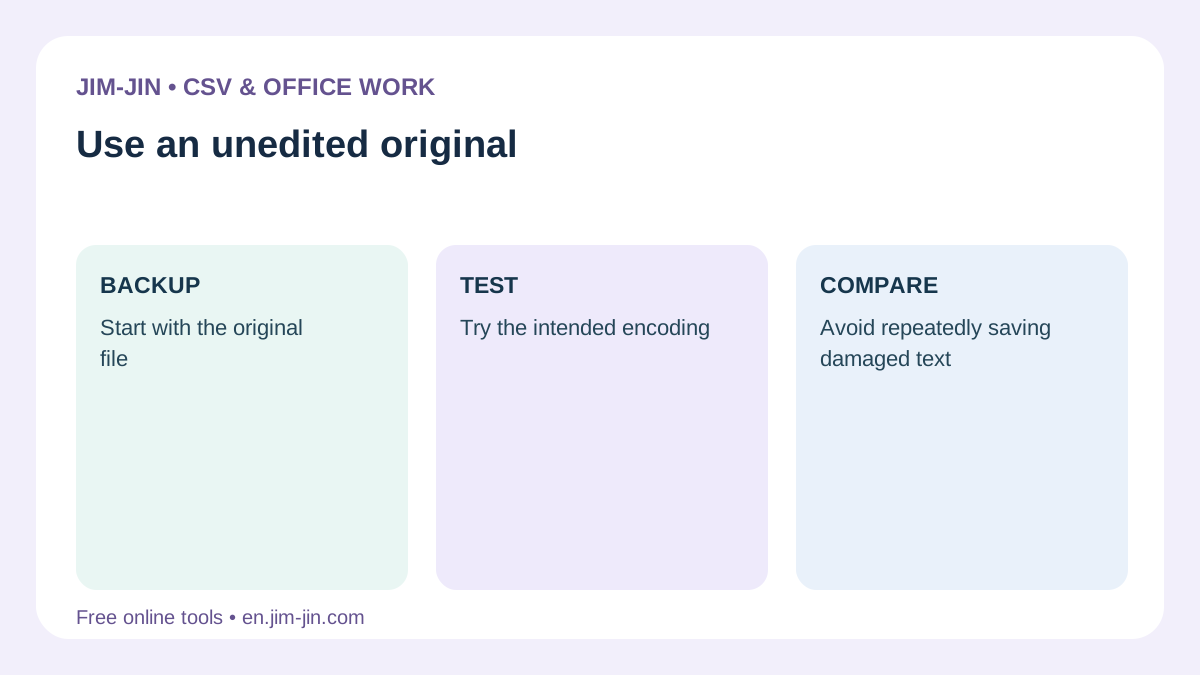
First look for the CSV before it was saved again in Excel or a conversion tool. That is the starting point.
Even a file named Original may already have been overwritten with garbled text. Check where it came from and which operations followed, rather than relying on its name.
Where to look for the original
- Your computer’s Downloads folder
- Attachments in received emails
- A copy as originally received in a shared folder
- File history or backups
- The business system or web service that exported the CSV
If you can download it again, save the fresh CSV under another name. Make a working copy too and keep the unedited file untouched.
If source system data has changed, a new export may not match the previous one. Check the period, selection conditions and record count.
Distinguish display issues from saved-content issues
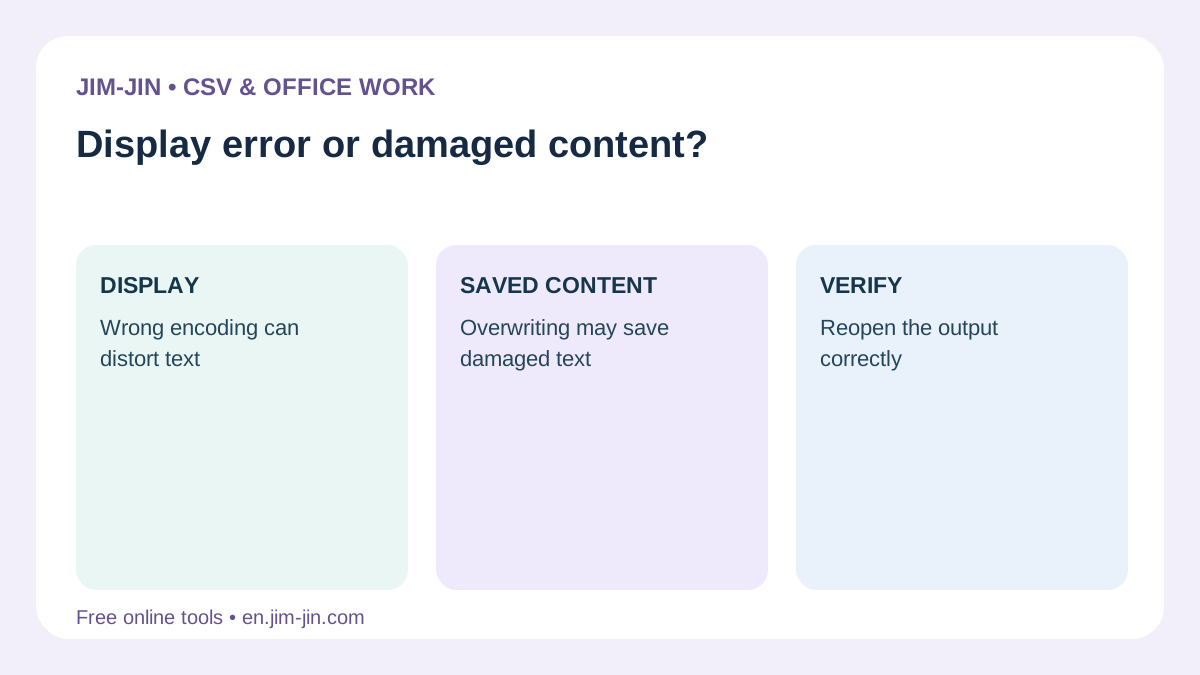
If an unedited CSV reads correctly with the right encoding, its original character information remains available.
If only the edited or converted CSV is wrong, an intervening operation may have caused the problem. Starting again from the unedited CSV is more reliable than repeatedly repairing the converted file.
Check 2: Review the reading encoding, not only the saved format
If saving as UTF-8 did not fix it, check how the file was read before saving.
Encoding conversion has two settings.
- Source encoding: How the input file is read
- Destination encoding: How the decoded characters are saved
For example, reading a UTF-8 original as Shift_JIS and saving the garbled text as UTF-8 will not necessarily restore Japanese text.
Do not merely choose UTF-8 for output; verify that Japanese text is correctly decoded in a pre-conversion preview. This is important.
Use automatic encoding detection as a starting point
Automatic detection is useful but not always correct. Short files or files consisting mainly of ASCII letters and numbers may be difficult to distinguish between encodings.
Check in the following order.
- Look for encoding information from the CSV provider or export screen.
- If specified, select that encoding in the reader.
- If unspecified, review automatic candidates and the preview.
- Check Japanese text, names and symbols in the data, not just headings.
Even if most of a file looks correct, individual characters may be mishandled. Do not judge only by the first few rows.
Import into Excel instead of double-clicking
If opening a CSV directly garbles text, check it using Excel’s import features.
Here is a typical Excel for Windows procedure. Names and available features vary by version.
- Open a blank workbook in Excel.
- On the Data tab, choose From Text/CSV.
- Select the unedited CSV.
- Check encoding settings such as File Origin.
- Check Japanese text and column boundaries in the preview.
For UTF-8, consider 65001: Unicode (UTF-8); for Japanese Windows CSV files, consider 932: Japanese (Shift-JIS). Follow the original file specification.
Microsoft also recommends Excel’s data import feature for UTF-8 CSV files without a BOM.
References: Microsoft Support: Opening CSV UTF-8 files correctly in Excel/Japan’s Ministry of Finance: Opening CSV files without garbling text or changing data formats
Check 3: Was the file saved after text became garbled?
If changing import settings does not help, review what happened after the garbling.
- You overwrote the file in Excel while text was garbled.
- You copied garbled text and pasted it into another file.
- You converted an already converted CSV into another encoding.
- A warning about character replacement or compatibility appeared while saving.
These operations can save the garbled display as the file’s actual contents.
Seeing ? or � alone does not prove recovery is impossible
Question marks and the replacement character � may stand in for unsupported characters or unreadable data. Microsoft’s encoding documentation describes such replacements.
However, a replacement character displayed on screen does not necessarily mean the original character information has been lost. The application may be temporarily substituting unreadable portions for display.
If replacements such as question marks were saved and original information was lost, the file alone cannot identify the original characters. For example, different kanji all replaced by ? can no longer be distinguished.
References: Microsoft Learn: Character encoding and replacement fallbacks
If overwritten, look for a way back to the original data
Overwriting does not immediately prove recovery impossible. Look for unedited attachments, backups or source data.
Some garbling can be reversed depending on its history, but lost character information cannot be fully recovered. For names, addresses and product codes, do not assume plausible-looking output is correct; compare it with original records.
What to check when only part of the text is garbled
Only particular kanji or symbols look wrong
Check whether the output encoding supports the affected characters.
Tools may offer Shift_JIS and Windows-31J/CP932 separately. This can affect extended characters such as kanji in names or circled numbers, so check source and destination requirements.
Avoid manually replacing a name with similar-looking kanji when you do not know the correct spelling. Compare it with the original list or system record.
A combined file becomes garbled partway through
If individual CSV files read correctly but a combined file becomes garbled partway through, check each original’s encoding.
Directly concatenating UTF-8 and Shift_JIS files without standardizing encodings may create a file that cannot be read correctly under a single encoding.
Return to the separate files instead of repeatedly converting the combined CSV. Read each correctly and combine them into output using the same encoding.
Only the first heading looks wrong
If unknown characters appear before the first column name or the import system fails to recognize it, check BOM handling.
A BOM is a marker at the start of a file identifying encodings such as UTF-8. Readers that mishandle it may treat it as part of a heading. Check whether the destination requires a BOM or no BOM.
Adding or removing a BOM alone does not restore damaged characters in the body.
References: Official Unicode FAQ: BOM
CSV problems easily mistaken for encoding issues
The reason encoding changes do not help may be a different CSV problem.
| Symptom | Main setting to check |
|---|---|
| All data appears in column A | Delimiters such as commas, tabs or semicolons |
| Columns shift or records split midway | Delimiter, quoting and embedded newline handling |
| Postal or product codes lose leading zeros | Excel’s automatic numeric conversion |
| The end of a long number changes | Precision loss during numeric import or saving |
| Characters appear as boxes | Whether the font supports the characters |
For example, a product code changing from 00123 to 123 is not fixed by switching to UTF-8. The relevant column must be read as text.
If zeros or digits were already lost and saved, display settings alone cannot restore them. Compare with an unedited CSV, as with garbled text.
After repair or conversion, check more than readable Japanese
Once characters are readable, verify contents before using the data for work.
- Are column headings correct?
- Are records at the beginning, middle and end intact?
- Do record and column counts match expectations?
- Do names, addresses, company names and symbols match the original?
- Do postal and product codes retain leading zeros?
- Have long numbers been rounded or altered?
- Does the saved CSV work correctly with the destination’s import settings?
With embedded newlines, text line counts may differ from record counts. Compare the number of records parsed as CSV.
Check readable Japanese and overall data correctness separately.
Points to check when using JIM-JIN tools
JIM-JIN’s CSV Encoding Repair is an option for inspecting garbled CSV files. Use the TXT and CSV Encoding Converter to change the saved encoding to meet destination requirements.
Follow this order when using tools too.
- Keep an unedited original.
- Use a working copy for checks.
- Check the reading encoding and displayed contents.
- Save as a separate file using the destination’s encoding.
- Open the saved file and compare contents.
Reviewing settings from the original makes it easier to identify causes than repeatedly processing converted files. Tools cannot guarantee restoration of character information already lost.
Frequently asked questions
Why is text still garbled after converting to UTF-8?
The source encoding may be wrong, settings used to reopen the converted CSV may not match, or character information may already have been lost. Check the unedited original and reading settings, not only output settings.
If Notepad displays it correctly, is the CSV fine?
The displayed portions likely retain decodable character information. However, this does not verify CSV structure such as delimiters and quotes. Check in Excel or the destination too.
Can an overwritten garbled CSV be restored?
It depends on the saved content and conversion history. Recovery may be possible if character information remains, but full recovery from that file alone is impossible if replacements such as ? destroyed it. First find an unedited copy, backup or source data that can be exported again.
Does renaming .csv to .txt fix it?
Renaming does not change encoding or contents. A different application or opening procedure may read it correctly, but the extension change itself does not repair characters.
If CSV text remains garbled, before repeating conversions, check whether an unedited original exists, whether the reading encoding is correct, and whether the file was saved after becoming garbled. Tracing the stage at which display or contents changed helps you decide whether to fix import settings or return to source data.