Have you opened a downloaded CSV in Excel only to find that Japanese text becomes unreadable? It may display correctly in another application but become garbled in Excel.
A common cause of garbled CSV text is a mismatch between the encoding used to save the file and the encoding used to read it. Even if the display is garbled, the original file is not necessarily damaged.
This article explains UTF-8, Shift_JIS and BOM, terms often encountered with CSV files, and how to check settings to prevent garbled text.
Garbled CSV text comes from mismatched decoding rules
Computers do not save Japanese characters directly as visible letters. They encode them as sequences of numbers and decode them when opening files. These rules are called character encodings.
For example, reading a UTF-8 CSV as Shift_JIS may produce different characters or symbols.
| Encoding when saved | Encoding when read | Expected display |
|---|---|---|
| UTF-8 | UTF-8 | Displays correctly |
| Shift_JIS | Shift_JIS | Displays correctly |
| UTF-8 | Shift_JIS | Japanese and other text may become garbled |
| Shift_JIS | UTF-8 | Japanese and other text may become garbled |
Letters and numbers may remain readable while Japanese text is garbled. UTF-8 and Shift_JIS share representations for ordinary ASCII letters and digits but differ for Japanese text.
Also, the .csv extension does not identify a single encoding. CSV encoding depends on the application and save settings used to create it.
How do UTF-8, Shift_JIS and BOM differ?
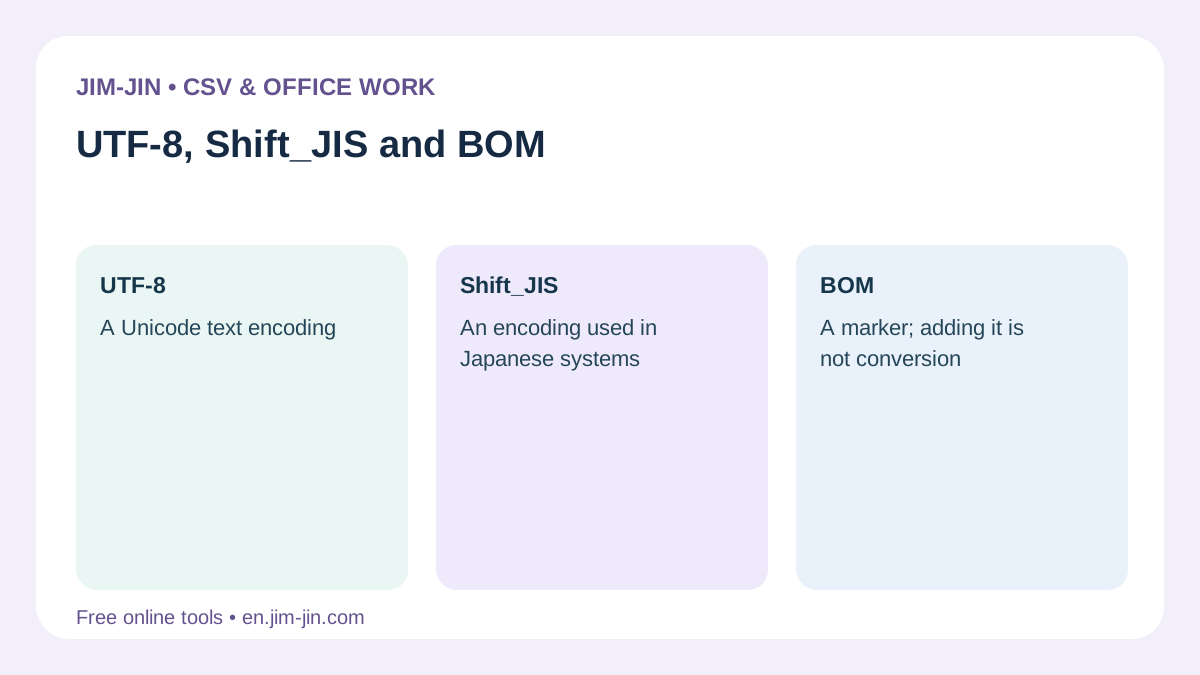
UTF-8 and Shift_JIS are character encodings, while a BOM is a marker at the beginning of a file.
| Term | Role | What it means for CSV files |
|---|---|---|
| UTF-8 | An encoding covering many languages, including Japanese | Used to exchange data with web services and other systems |
| Shift_JIS | An encoding mainly for Japanese text | May be required by existing business systems |
| BOM | A marker identifying an encoding or related information | Can help Excel recognize UTF-8 CSV files |
UTF-8 files can have a BOM or no BOM. Both are UTF-8 and support the same range of characters.
UTF-8: an encoding for Japanese and many other languages
UTF-8 is one way to store Unicode characters in files. It supports Japanese, English, Chinese and many other languages.Official Unicode FAQ
Saving as UTF-8 does not guarantee correct display in every application. The reader must also decode the file as UTF-8.
If a CSV provider states that the output is UTF-8, normally choose UTF-8 when importing it too.
Shift_JIS: common in Japanese business data
Shift_JIS has long been used for Japanese data and may still be specified for imports into business systems.
Note that Shift_JIS shown in Windows settings may refer to CP932, which has an extended character repertoire. Microsoft also describes code page 932 as a form of Shift_JIS.Microsoft’s code page documentation
If a converter offers both Shift_JIS and Windows-31J/CP932, check the destination’s requirements.
Not every character supported by UTF-8 can be saved in Shift_JIS. Emoji or some kanji may cause conversion to stop or unsupported characters to be replaced.
BOM: a marker identifying UTF-8
BOM stands for Byte Order Mark. At the start of a UTF-8 file, it can signal that encoding to the reader. It is normally not displayed on screen.Unicode’s explanation of BOM
Microsoft explains that UTF-8 CSV files saved with a BOM can be opened normally in Excel. UTF-8 files without a BOM can also be opened using Excel’s data import features.Microsoft’s official CSV import guidance
However, some systems do not expect a BOM.Making a file easy to open in Excel and making it suitable for a destination system are separate considerations.
Simply adding a UTF-8 BOM to a Shift_JIS file does not convert it to UTF-8.
Why can CSV text become garbled in Excel?
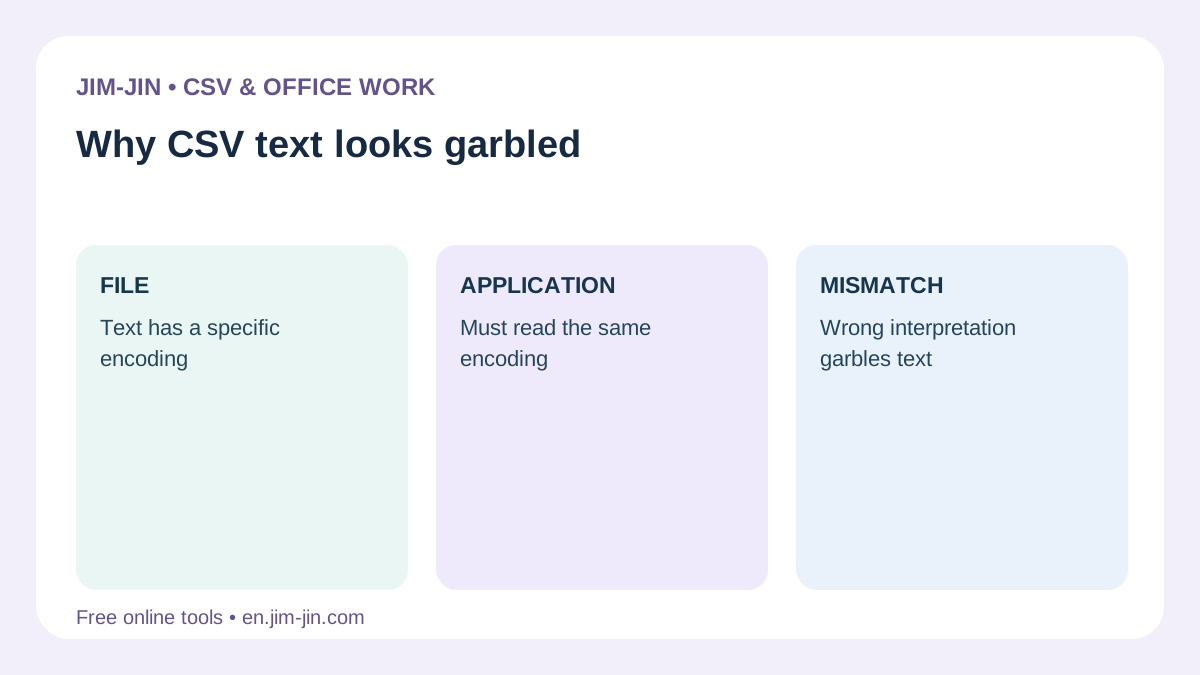
Double-clicking a CSV skips the step of reviewing or specifying its encoding. Garbling occurs if Excel’s chosen interpretation does not match the file’s encoding.
Behavior depends on Excel version, operating system and file contents. Rather than assuming Excel cannot read UTF-8 or all CSV files should use Shift_JIS, check import settings.
Pay particular attention in these situations.
- You opened a CSV downloaded from a web service directly.
- The file displays correctly on another computer.
- Letters and numbers are readable, but Japanese text is not.
- Data is correct in the original system but becomes garbled when imported into Excel.
Keep the original and try reading it again with the encoding specified.
If text is garbled, keep the original and reopen it
Saving over a file while its text is garbled may save incorrectly decoded characters and make recovery difficult. Copy the original CSV first and work on a checking copy.
In Excel for Windows, you can specify the encoding using the following general steps. Menu names may differ by version.
- Open a blank workbook in Excel.
- On the Data tab, choose From Text/CSV.
- Select the CSV to import.
- Check the encoding setting.
- Check Japanese text and column boundaries in the preview, then load the data.
For UTF-8, consider 65001: Unicode (UTF-8). For Japanese Windows CSV files, consider 932: Japanese (Shift-JIS). Check the provider’s description and choose a setting that displays correctly in the preview.Japan’s Ministry of Finance CSV import guidance
If columns such as postal codes or product codes need leading zeros, also pay attention to import data types.Garbled text and disappearing leading zeros are separate problems, so matching the encoding alone does not prevent both.
Choose save settings according to the CSV’s purpose
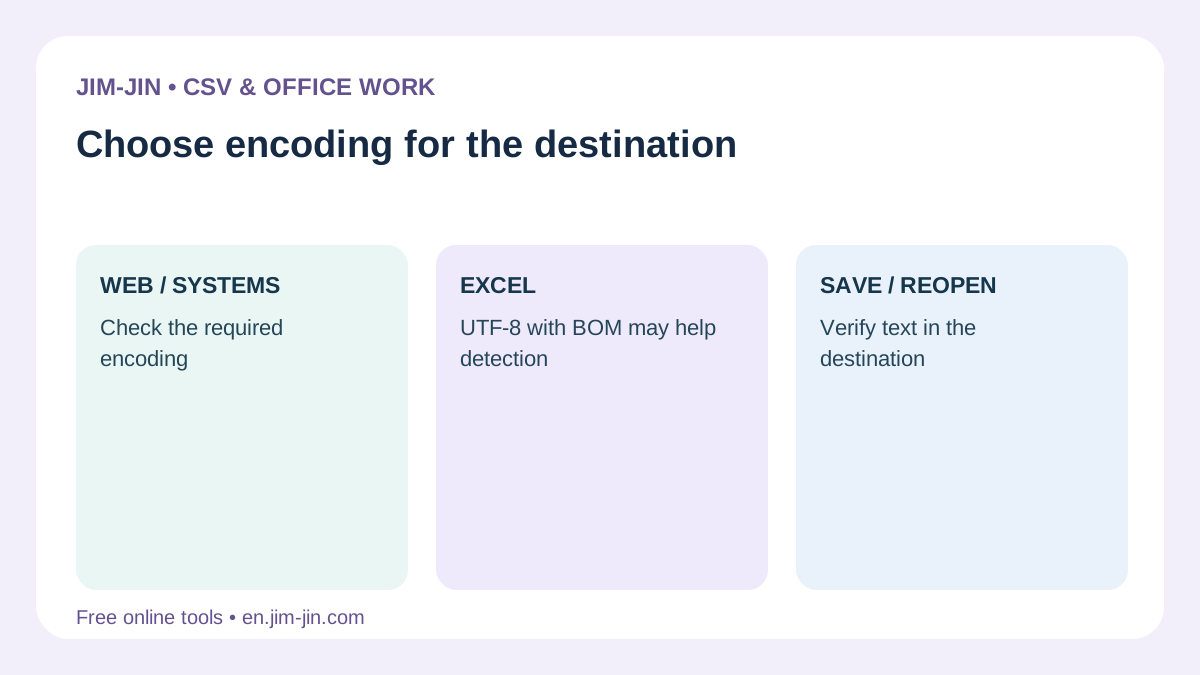
Choose encoding and BOM settings based on who will use the file next and in which application.
| CSV purpose | Selection guideline |
|---|---|
| Let recipients open and check it directly in Excel | Consider UTF-8 with BOM |
| Import into a system requiring UTF-8 without BOM | Save without BOM as specified |
| Import into a system requiring Shift_JIS | Follow the import specification, including any CP932 distinction |
| Include languages other than Japanese or emoji | Choose UTF-8 if the destination supports it |
| The recipient’s requirements are unclear | Check the manual or responsible person first |
When changing an encoding, read the file correctly using its original encoding, then save using the destination encoding. The sequence matters. Saving a garbled display as UTF-8 does not necessarily restore the original Japanese text.
When changing the encoding does not fix it
If reopening with the correct encoding does not help, the original data may already have been altered.
For example, if unsupported characters were replaced with question marks during conversion and saved, the resulting file alone may not reveal the originals.
Also, not every display issue is an encoding problem.
| Symptom | What to check |
|---|---|
| All Japanese text becomes unreadable | The import encoding |
| Only some characters become question marks or similar replacements | Whether previous conversion or saving lost those characters |
| Characters appear as boxes | Whether the selected font supports them |
| All data appears in one column | Delimiter settings, such as comma or tab |
| Product codes lose leading zeros | Excel’s automatic numeric conversion |
Before repeatedly trying repairs, consider downloading the CSV again from the provider or returning to an unedited original.
When repairing or converting CSV files
JIM-JIN’s CSV Encoding Repair can help inspect garbled CSV files. For changing encodings to meet submission requirements, use the TXT and CSV Encoding Converter.
In either case, first retain the unedited original and check headings, Japanese text, names and symbols afterward. Encoding detection or conversion cannot guarantee recovery of characters already lost.
If a CSV looks garbled, before overwriting it, check: Which encoding was used to save this file, and which encoding am I using to open it? Understanding UTF-8, Shift_JIS and BOM helps you identify the cause.